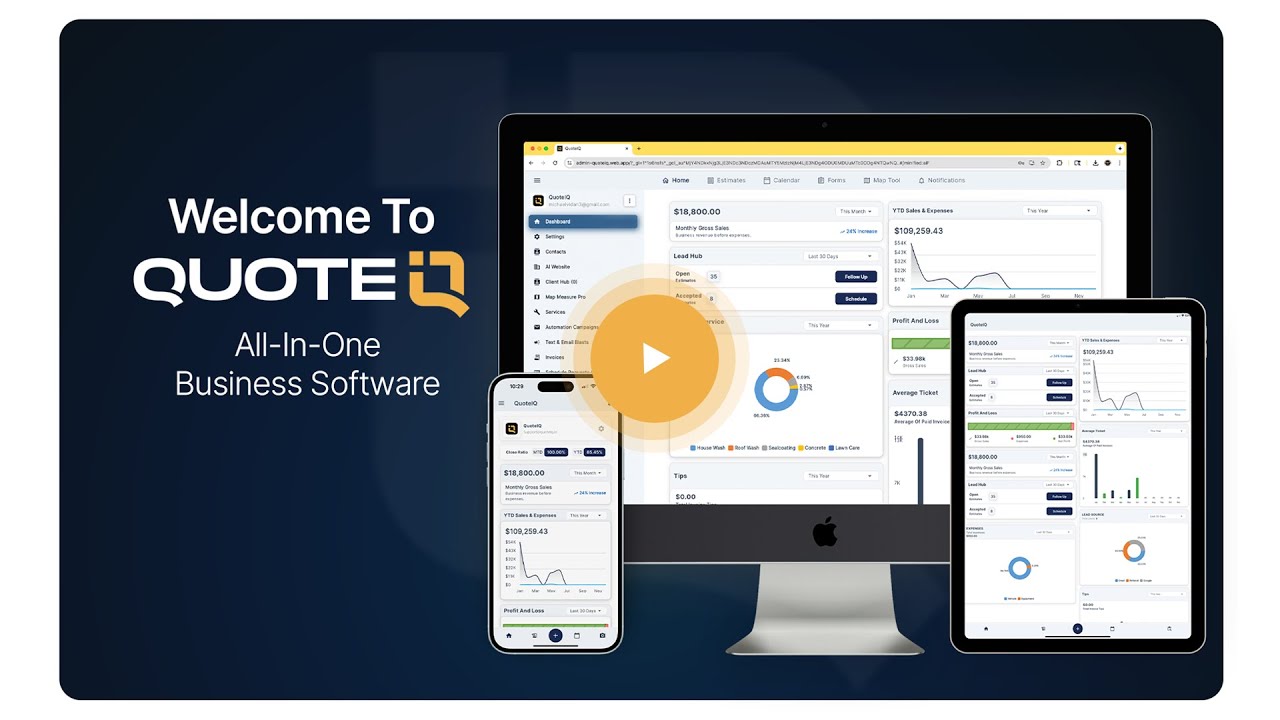



Explore QuoteIQ’s field service management software features for estimates, scheduling, customer management, payments and AI. One connected workflow, from first quote to final payment.
QuoteIQ brings the field service management software features home service contractors use every day into one app and CRM. It connects estimates, invoicing, scheduling, customer records, online payments and AI tools. Plans start at $29.99/month. Every plan includes e-signatures and access to AI tools through IQ Credits. MapMeasure Pro starts on Beginner; ClientHub, job costing, the Client Portal and automated review requests start on Pro; route optimization and EmployeeHub start on Elite. Crew creation and crew scheduling are on Max. Compare plans and availability.
Explore QuoteIQ’s field service management software features in six workflows and 47 categories. Start with Send & Collect for estimates, invoices and signatures; Know Every Customer for contacts and communication; Run The Crew for scheduling and team tools; Measure & Prove for property measurement and job documentation; Track The Money for payments, expenses and reporting; or Ask & Automate for AI and connected workflows. Choose a category, then a feature to see its walkthrough and feature details. The complete feature index links straight to each entry.
Every quote, contract and invoice your business puts in a customer's hands — written, sent, signed and paid without leaving the app.
Five ways to price a job, from a 30-second quote at the curb to a tiered care plan the customer picks from themselves. Same price book, same send, same Draft-to-Accepted pipeline — the only thing that changes is how much thinking the job deserves.
Create and send a complete estimate, then follow it from draft to sent, viewed and accepted. Keep pricing and customer details together as the job moves forward.
Explore Standard Estimates →Related: Options Estimates, Package Estimates, Quick EstimatesPut good, better and best on one page and let the customer choose a tier instead of negotiating your price down. Whichever they pick becomes the accepted estimate.
Explore Options Estimates →Related: Standard Estimates, Package Estimates, Quick EstimatesBundle several services into a named plan and price the whole plan, so recurring work is sold as one number the customer can say yes to rather than a list they can pick apart.
Explore Package Estimates →Related: Standard Estimates, Options Estimates, Quick EstimatesUse your saved services and pricing to create a quote quickly, without rebuilding the same line items for every customer.
Explore Quick Estimates →Related: Standard Estimates, Options Estimates, Package EstimatesDescribe the job in plain words and attach photos; the AI returns a priced draft built from your own price book. You edit what it got wrong and send it.
Explore AI Estimator →Related: Standard Estimates, Options Estimates, Package EstimatesTell it what to change — add a line, apply a discount, adjust the markup — and it edits the estimate you are looking at. No hunting for the right field.
Explore AI CoPilot →Related: Standard Estimates, Options Estimates, Package EstimatesThe Photos section on the estimate takes photos from your device in two taps. Attach three and it reads 3 photos attached, with the photos in a row beneath, ready to go out with the estimate.
Explore Estimate Photos →Related:In Add AI Photos, describe the job, add the before photo from your gallery and tap Generate AI Photo. The preview shows the finished job generated from that photo, before any work starts.
Explore AI Photos On Estimates →Related:Ask for changes opens a message box on the estimate. The customer types what they want different and sends it, and the estimate shows their message under Your messages to the business.
Explore Ask For Changes →Related:The message a customer sends from their estimate page lands on that estimate's card in your Estimates list. View older opens every message they sent, in order.
Explore Change Requests →Related:Decline this estimate asks the customer for a reason. They type it and send, and the estimate shows as declined, with Change my mind still there if they come back to it.
Explore Decline With A Reason →Related:Change the job address on the estimate and set a separate billing address. The Service Address card then lists both, labelled Job address and Billing address.
Explore Job & Billing Address →Related:The estimate becomes a bill the moment the work is done — one tap, same line items, nothing retyped. Then it bills once, bills every month, or bills every finished visit on the books in a single pass.
One tap converts the accepted estimate into an invoice with the same line items, totals and tax carried across. Nothing is retyped, so nothing gets mistyped.
Explore Estimate To Invoice →Related: Recurring InvoiceBuild an invoice from the price book and send it by text and email at the same time, with a pay link on it. Your customer can settle it from their phone.
Explore Standard Invoice →Related: Recurring InvoiceSet a subscription once and the invoice generates and sends itself on the cadence you chose. Recurring revenue stops depending on somebody remembering to bill it.
Explore Recurring Invoice →Related: Estimate To InvoiceSelect every finished visit for the week and turn them into sent invoices in one pass, instead of opening each job and billing it by hand.
Explore Mass Invoicing →Related: Recurring InvoiceDue Upon Receipt, Net 15 or Net 30 — pick the terms and the due date stamps itself onto the invoice and drives what counts as overdue.
Explore Payment Terms →Related: Recurring InvoiceRecord a check, cash or bank transfer taken in person and the balance closes immediately, so the books match reality without a separate spreadsheet.
Explore Manual Payments →Related: Estimate To Invoice, Recurring InvoiceTap the camera on a service line and add photos from your device. The first becomes the line's hero image, all of them sit as thumbnails under the line, and the preview shows the customer the hero photo beside it.
Explore Invoice Photos →Related:When an invoice requires a signature, tapping Pay opens a Sign to pay dialog instead of the checkout. The customer draws their signature on the invoice, then goes on to payment.
Explore Sign Before You Pay →Related: E-SignaturesThe link shows the recurring service, the total per month and the next billing date. The customer taps Start subscription, and the same link then reads Active with the next billing date.
Explore Subscription Page →Related:An accepted estimate is only worth what you can prove, so every approval captures a real signature and timestamps it. Change the numbers afterwards and QuoteIQ voids that signature to your face instead of quietly covering for you.
Require a signature before an estimate can be accepted, and the customer draws it with a finger on their own phone. The signed copy is stored with the document.
Explore E-Signatures →Related: Terms & ConditionsChange a signed estimate and QuoteIQ tells you, before you save, that the signature will be voided. What the customer signed and what you hold stay the same document.
Explore Void On Edit →Related:Your fine print saved once and attached to every estimate automatically, with the option to swap in a different set for a job that needs its own terms.
Explore Terms & Conditions →Related: E-SignaturesClip a signed contract PDF to the estimate and it rides along with every send, so the agreement and the price live in one place.
Explore Contract Attachments →Related: E-SignaturesCreated, sent, viewed, accepted — every step timestamped on the record. When a customer says they never saw it, you are not relying on memory.
Explore Approval Trail →Related: Terms & ConditionsIn QuoteIQ Sign, choose One document or Multiple documents. A set of files gets one name before it goes out, so it arrives as a single packet to sign.
Explore Send for Signature →Related: E-SignaturesThe link opens a Sign this document page that asks for the signer's email first, so you know who is signing and they know where their copy is going.
Explore Signing Link →Related: E-SignaturesBefore the first box, the signer types their name, draws or types a signature, confirms their initials and agrees to sign electronically, then taps Start signing.
Explore Adopt a Signature →Related: E-SignaturesThe finished page says You're all set and offers Download your copy, and a copy of the signed document is emailed to the signer as well.
Explore Signed Copy →Related: E-SignaturesOpen QuoteIQ Sign from Tools to see the documents you have out for signature. Upload document adds a new one, which lands in the list as a draft ready to set up and share.
Explore QuoteIQ Sign Home →Related:Open a draft on the QuoteIQ Sign canvas and drag a Signature box, an Initials box and a Date signed box to the places the signer should fill in.
Explore Place Signature Boxes →Related:The QuoteIQ Sign document overview has a Signers tab. Add the customer by email, copy the share link, and their row changes from Invited to Signed when they finish.
Explore Signers & Status →Related:From the share link, past the email check and the one-time signature set-up, the customer signs each box in order and finishes on You're all set, with their copy ready.
Explore Sign On Any Phone →Related:Open the contact and its QuoteIQ Sign card lists each document with its status, Signed or Awaiting signature. Tap a signed one and the signed copy opens right in the app.
Explore Signed Documents On The Contact →Related:Tap View Details on an accepted estimate and the Full Pricing Breakdown opens. A Signature tab sits beside Services, showing when the estimate was signed and a button to view the signed document.
Explore Estimate Signature Tab →Related:On an estimate that needs a signature, the customer taps Sign to accept and Set up your signature opens. They adopt a signature once, sign, and Accept estimate unlocks.
Explore Set Up A Signature →Related:Under the PDFs attached to the estimate, tap Enable QuoteIQ Sign, pick the agreement, and place the Signature and Date signed boxes the customer fills in when they accept.
Explore Signable Attachments →Related: QuoteIQ SignBelow the estimate, Documents to sign lists the attached agreement. The customer agrees to sign electronically, signs each attached document, and the bar turns to Accept estimate.
Explore Sign The Attachments →Related: QuoteIQ SignContract / Terms & Conditions in Settings holds your terms documents. Choose a default and it is attached to every new estimate, ready to swap for a job-specific set.
Explore Terms Library →Related:Some jobs are too big to win on a line-item list. A proposal wraps the same estimate in your gallery, your services and your reviews — so your customer opens a company instead of a number, reads it on their phone, and signs it right there.
For the job that is too big to win on a line-item list: the customer opens your About Us, gallery, services and reviews, and reaches the price already sold on the company.
Related:The estimate sent as a full signing document — the customer initials the sections, signs at the end, and only then does Accept unlock.
Related:Fill in About Us, Gallery, Services and Reviews section by section with a live preview beside you, so you can see what the customer will see as you build it.
Related:The shelf your finished proposals live on. Set one as the default and every big job starts from your best work instead of a blank page.
Related:Created, emailed, opened three times, change requested, accepted — every view timestamped and expandable, so you know when to follow up and when to leave it alone.
Related:One switch makes a proposal signable, and the app spells out exactly what the customer has to initial or sign before it will count as accepted.
Explore Signing Setup →Related:Choose which sections this particular customer sees, and the app stops you sending one that is empty.
Related:Toggle a section while a proposal is out for signature and a red confirmation names exactly what that would destroy before anything is lost.
Explore Void On Edit →Related:Finish a proposal and the app offers to shelve it as a template, so the next one of these costs you a couple of taps instead of an evening.
Related:Marking a proposal Ready is the send: the credit clears and the customer's page gains its Accept button in the same moment.
Related:See what a proposal send costs before you commit. It is 100 IQ Credits per estimate, charged once the first time a proposal is attached, and free during the trial and on Elite and Max.
Related:The signing bar on the proposal page starts at 0 signed. The customer works through the checklist, adds the initials and signature it asks for, and the bar ends on Proposal accepted.
Explore Proposal Signing Bar →Related:Everything you send looks like it came from a company with an office — branded PDFs, saved templates, and a link short enough to text. Build the quote once and the second one costs you nothing.
See the branded PDF exactly as your customer receives it — letterhead, totals and license number — before it leaves your hands.
Related: Estimate Templates, Invoice TemplatesCopy a link short enough to text. It opens as the live estimate page, so the customer reads the current version rather than an attachment from last week.
Related: Estimate Templates, Invoice TemplatesSave an estimate you write often as a template and start the next one already priced. The second quote of a kind costs you almost nothing.
Explore Estimate Templates →Related: Invoice TemplatesOne tap drops your standard line items and totals onto a blank invoice, so routine billing does not get rebuilt from scratch every time.
Explore Invoice Templates →Related: Estimate TemplatesWrite the estimate text and the estimate email once. Merge fields fill in the customer's name and numbers on every send after that.
Explore Message Templates →Related: Estimate TemplatesAttach anything the customer should have — a warranty, a care guide, photos from the site — to the document itself, so it arrives with the paperwork instead of in a separate email.
Explore File Attachments →Related: Estimate TemplatesEstimate Settings holds the company-wide defaults. Change Default expiration from Never to 30 days, save from the sticky bar, and new estimates carry it.
Explore Estimate Expiration →Related:In Estimate Settings, make Options Estimate the default type, write the default client message and set the next estimate number. Save, and every new estimate starts from them.
Explore Estimate Defaults →Related:When more than one person is allowed to quote, you need to know who quoted what and who actually closed it. Every document carries a rep, every rep carries a number, and the totals move the second a deal does.
Reps ranked by revenue for the month with real dollars in every cell, so who is actually selling is a number rather than an impression.
Explore Sales Leaderboard →Related: Pipeline BoardDrag a deal from Quote Sent to Closed Won and every total on the board moves to agree with it. The pipeline is the record, not a summary of one.
Explore Pipeline Board →Related: Sales LeaderboardRename the stages to match how you actually sell and set each one's odds of closing. The board and the forecast both pick the change up immediately.
Explore Deal Stages →Related: Sales LeaderboardPipeline value weighted by each stage's probability, recomputed the instant a card lands somewhere new — so the forecast is never a week old.
Explore Deal Forecasting →Related: Sales LeaderboardCommission calculated off revenue actually collected rather than revenue merely booked, then marked paid so nobody has to ask twice.
Explore Commission Payouts →Related: Pipeline BoardThe Create Deal dialog takes the deal name, the amount, the stage and the priority. Attach the customer, create it, and the card lands in New Lead while the board's totals update.
Explore Create A Deal →Related:Tap a deal on the board and the preview shows its stage and probability, priority, amount, close date and owner. Details adds the customer, reminders, attachments, the follow-up task and notes.
Explore Deal Preview →Related:One toggle turns the board into a table: client, deal name, stage, created date, priority and amount. Sort by amount and the biggest deal comes first.
Explore Pipeline Table View →Related:On a deal's Details tab, Attachments adds photos from your device beside the files already there. Open one and the viewer steps through the deal's attachments.
Explore Deal Attachments →Related:You find out the estimate was accepted before your customer finishes closing the tab. Every document event fires a push, every counter on screen keeps up, and you decide which ones are worth a buzz.
Your phone lights up when a document is viewed, then again when it is accepted — and one tap opens the estimate itself, not a list.
Related: @MentionsEvery event in one list with unread counts, bulk select, mark all read and archive — so a busy week does not bury the one alert that mattered.
Related: @MentionsInvoice paid, booking request, estimate opened — you choose which events are worth interrupting you and which just get recorded.
Related: @MentionsType @ and the team list finds the person you mean. Their phone buzzes with the ask and the thread keeps the context.
Explore @Mentions →Related:A request lands and every counter that should know about it moves at once, so the badge you are looking at is never stale.
Related:The big-ticket job stops dying on the price — your customer splits it into installments at checkout through your Stripe or Whop account, and you are paid in full, upfront. Cards on file, bank transfers, deposits and half-now-half-later all land against the same invoice.
The big-ticket job stops dying on the price. Your customer splits it into installments at checkout through your Stripe or Whop account, and you are paid in full, upfront.
Explore Pay Over Time →Related: Card On FileCharge the card already saved on the customer's record without sending them anything to click. Repeat work bills itself.
Explore Card On File →Related: Pay Over TimeBank transfer offered beside card at checkout. You receive the full amount either way; the customer picks whichever costs them less.
Explore ACH Bank Payments →Related: Pay Over TimeRequire a percentage before the work is scheduled. The deposit is collected against the same invoice, and the remaining balance keeps tracking itself.
Explore Deposit Collection →Related: Pay Over TimeHalf now, half on completion. The invoice stays open, records each payment against it, and shows exactly what is still outstanding.
Explore Partial Payments →Related: Pay Over TimeOne record per customer holding every text, call, portal login, quote and campaign you've ever sent them — instead of your phone, your inbox and your memory each holding a piece.
Every address, tag, lead source and dollar a customer has ever been worth, sitting on one screen. Bring your old CRM over as a CSV and start with your book already intact.
Jobs, estimates, invoices and conversations all counted against one name on one screen — including what the customer has been worth to you since the first job.
Explore Contact Records →Related:Tag customers by the work they buy or the route they sit on, then filter your whole book down to that group — for a price change, a reminder or a campaign.
Explore Contact Tags →Related:Record where each lead came from, and the dashboard later tells you which channels produced paying work rather than which produced phone calls.
Explore Lead Sources →Related:One customer can hold several properties, each with its own history — and the one your crew should default to is marked.
Explore Service Addresses →Related:Drop in your old CRM's CSV and watch the columns map themselves. You arrive with your book already intact instead of rebuilding it by hand.
Explore Contact Import →Related: Contact RecordsOn the contact record, Add a new contact takes a role, a name, an email and a phone. Switch on the row's toggle and that person is added to new documents automatically.
Explore Additional Contacts →Related:The Estimate Contacts card lists the primary contact and anyone set to ride along. Add contact offers the other people on the account, so a property manager can be checked in as a recipient.
Explore Estimate Recipients →Related:While you add a new contact, a number that already belongs to someone raises a warning under the field. Tap Open and the existing record opens, so the book never holds the same customer twice.
Explore Duplicate Detection →Related:From the contact's menu, Create offers Invoice, Schedule and Estimate. Pick Quick Estimate and it opens with the customer's name, address, email and phone, and their estimate contacts, filled in.
Explore Quick Actions →Related:Lead Sources in Settings lists Website, Facebook, Google, Referral and Yard Sign. Add your own, such as Neighbor referral, and set it as the default for new contacts.
Explore Custom Lead Sources →Related:A real company phone number that lives in the CRM instead of in your pocket, so every text and call files itself against the customer. The AI answers the ones that come in after you've gone to bed.
Text customers from their own record, with delivery ticks and the whole thread kept against the account. Nothing important lives in one person's phone.
Explore Two-Way Texting →Related: AI Auto-ReplyA lead texts after hours and gets a real answer — price, availability and the next step — instead of silence until morning.
Explore AI Auto-Reply →Related: Two-Way TextingA real company line that lives in the CRM. Customers see the business on their screen, and your personal number stays yours.
Explore Business Phone Number →Related: AI Auto-ReplyCall straight from the customer's record, and when the call ends it logs itself into the thread with its duration — no note to write.
Explore In-App Calling →Related: AI Auto-ReplyMissed calls stack up with a player and a written transcript, so you can read what came in between jobs instead of listening to all of it.
Explore Voicemail →Related: AI Auto-ReplyAttach opens Add Media. Pick photos from the gallery and they wait above the composer; Send uploads them one after the other and the message lands in the thread as Sent.
Explore Photo Messages →Related:With no business number yet, type up to three area codes in order of preference and send the request. The card confirms the number is being reserved, usually within one business day.
Explore Get A Business Number →Related:The call banner matches the number to the customer and shows their accepted estimate. Answer, shrink the call to a bar while you look something up, and end it when you are done.
Explore Incoming Calls →Related:When a call ends, the thread shows a call summary card with the main points and the next steps. One tap saves the summary to the customer's notes.
Explore Call Summaries →Related:In Call Settings, write the greeting callers hear when you miss them and save it. The section then reads Custom text greeting active.
Explore Voicemail Greeting →Related:The AI Auto-Reply settings switch it on for after hours only. Smart Level sets how it answers, from a simple acknowledgment to a contextual reply.
Explore Auto-Reply Settings →Related:In the customer's thread, Draft a reply from the AI Assist menu writes a reply to their last message into the box. Add your own line and send it.
Explore AI Reply Drafts →Related:An AI receptionist that picks up on the second ring while you're on a mower, answers from your own prices, and writes the caller down as a contact. You set how it sounds, what it knows, and what it does with each kind of call.
It answers the business line while you are working and turns the call into a contact — name, address and what they want — instead of a missed call.
Explore AI Receptionist →Related:Give it a name, one sentence of greeting and a number to answer, then arm it with a switch. Setup is minutes, not a project.
Explore Agent Setup →Related:Audition the available voices, hear your own greeting spoken in each one, and pin the one that sounds like your business.
Explore Voice Lab →Related:Feed it your service area, your pricing and your lead times so it answers from your numbers rather than making something up.
Explore Knowledge Bases →Related:Point it at a list of past customers, see what the run will cost before it starts, then let it dial through them.
Explore Batch Calls →Related:The Agents tab lists each agent with its direction, its phone number and whether it is Active. Add Agent starts a new one by asking what type of agent you need.
Explore Agents →Related:Choose Inbound Agent and the wizard walks through its steps. Tune the speaking style with sliders, attach one of your knowledge sources, and save the agent.
Explore Agent Builder →Related:On the Numbers tab, Add Phone Number searches available numbers by country and area code. Pick one, create it, and it lands in your list as Active, ready to assign.
Explore Get A Phone Number →Related:The Numbers tab counts assigned and available lines. Assign to Agent on a free number, pick the agent, and the card reads Assigned to with that agent's name.
Explore Assign Numbers →Related:From an agent's menu, Call Agent offers a free in-app test through the device's mic and speaker, or a real call to its number. The test screen shows the agent's opening line and voice.
Explore Test Call →Related:A branded, logged-in page where customers find their own estimate, invoice and next visit without calling you. You decide what it shows, who gets to see it, and what it looks like.
One link opens the customer's balance, their estimates and their next visit, in your colors — so the 11pm question answers itself.
Explore Portal Home →Related:Customers report a problem from their own portal and it arrives on your Requests console, ready to accept and schedule or decline with a reason.
Explore Service Requests →Related:Every estimate, invoice and inspection you have sent them, filed where they can find it themselves instead of searching an old email.
Explore Portal Documents →Related:Your colors, your logo and your own menu links, so the portal reads as your company rather than as software you bought.
Explore Portal Branding →Related:One dial sets what the portal shows for the whole company, and a second handles the one account that needs an exception.
Explore Portal Visibility →Related:Generate the customer's portal link and text it straight into the thread you are already having with them.
Explore Portal Link Sharing →Related:The link opens the branded portal straight on the customer's home page: what is due, their estimates, what they have paid and their next visit, with a menu for everything else.
Explore Portal Link →Related:Each estimate opens inside the portal with its total and Accept estimate, Ask for changes and Decline this estimate, then the estimate itself and every contact it goes to.
Explore Portal Estimates →Related:Appointments lists the customer's next visits with the date, the time, the service and the address, and who is coming to each. Past visits sit below, dimmed.
Explore Portal Appointments →Related:Schedule an appointment starts with the customer's details filled in. They pick one of the soonest openings, confirm the request, and the portal answers with the requested time and a reference.
Explore Book From The Portal →Related:Billing in the portal lists each saved payment method with Set default and Remove. The customer makes a different one the default and the portal confirms the change.
Explore Portal Billing →Related:A service request opens full page with its status, who sent it and when, and the details. Accept it, confirm, and it returns to the list as Accepted with Convert to estimate as the next step.
Explore Request Details →Related:The Activity tab lists what happened in the customer's portal, newest first with relative times, from requests submitted to requests accepted and completed.
Explore Portal Activity →Related:The portal menu lists Before & Afters beside Estimates, Invoices and Appointments. The page shows every before and after from the customer's completed jobs, newest first.
Explore Portal Before & Afters →Related:Job Forms in the portal lists the customer's job records newest first, each with its photos, so they can look back at what was done on every visit.
Explore Portal Job Forms →Related:Inspections in the portal shows each report with its technician, date and status. View Report opens the report itself: the property pictures, every inspection point with its answer and comment, and the notes.
Explore Portal Inspection Reports →Related:Homeowners price their own job, pick their own slot and fill in their own details on your website. You get a notification and a record that already exists.
Customers answer a few questions on your website and get a real price from your own rates — so you are quoting people who already know what it costs.
Explore InstaQuote →Related: InstaSchedule, Contact FormsA booking link that only offers slots your calendar actually has open, so self-booking never double-books the crew.
Explore InstaSchedule →Related: InstaQuote, Contact FormsThe booking request lands in your Inbox and two taps put it on the calendar as a real job with the customer already attached.
Explore Schedule Requests →Related: InstaQuote, Contact FormsBuild the enquiry form, embed it on your site, and accept the submission straight into a contact record instead of an email you have to retype.
Explore Contact Forms →Related: InstaQuote, InstaScheduleYou set the rate, the minimum and the questions the widget asks. It prices every enquiry from your rules, so it never quotes below your floor.
Explore Self-Quote Pricing →Related: InstaScheduleOn your branded quote form the customer chooses services, answers the quick questions, enters their details and address, and lands on Your quote is ready with the total and Accept estimate.
Explore Instant Quote Form →Related:On the A few questions step, each service asks for what its price needs. Skip one and the card flags it; answer the size, the material and the yes or no, and the customer moves on.
Explore Quote Questions →Related:If the verified address is the wrong property, Change property address opens a search. The customer picks the right one, it shows as Verified, and the quote prices that property.
Explore Verified Address →Related:Your quote is ready shows the total and the services, with a copy emailed. The customer taps Accept estimate, types their name to confirm, and the page asks them to pick an appointment time.
Explore Quote Ready Page →Related:InstaQuote Setup shows how many services are ready to quote. Open a service, switch on Allow customer to measure their property, and its card reads Quotable and Customer can measure, with its starting price.
Explore InstaQuote Setup →Related:Set Services lists every service with a checkbox. Check the ones to offer, save, and InstaQuote shows how many are live and which one still needs a price.
Explore Quotable Services →Related:Switch on Require a deposit, enter it as a percentage of the total and save. InstaQuote Setup then lists the deposit, such as 25% of total.
Explore Quote Deposits →Related:Add a discount code with its percentage off and save. The public quote form then shows a discount code field, and the code takes its percentage off the quote.
Explore Discount Codes →Related:Switch on Charge a Travel Fee, set the address you drive from, and add distance tiers with a fee for each, such as 0 to 20 miles. Save, and quotes add the fee by distance.
Explore Travel Fees →Related:Zip Code Pricing starts with every address at the same price. Add a ZIP with a percentage or a fixed upcharge, add another, and save: quotes for those areas include their upcharge.
Explore ZIP Code Pricing →Related:In Lead Capture and Thank You, switch on Lead capture only so the customer sees no price, enter your own thank-you page address, and save.
Explore Lead Capture Only →Related:On the last step the customer adds a note and taps Send request. The form turns into a thank-you saying you will reply by text and email, or sends them on to your own thank-you page.
Explore Request Received →Related:In the InstaSchedule settings, choose who customers can book, set each service's duration, and turn on InstaSchedule for Estimates. Its booking page link copies in one tap.
Explore Estimate Booking Link →Related:Self Schedule Users lists the owner and the team. Switch a crew member on and customers can book time with them online, for the services you offer.
Explore Bookable Team →Related:Configure opens a service's duration. Pick a quick length or roll the wheel to the exact minutes, save, and online bookings reserve that much time.
Explore Service Durations →Related:On the accepted quote the customer taps Schedule Appointment, picks a day and an open time, and confirms. The page reads Appointment scheduled.
Explore Book After Accepting →Related:On the quote form, Measure now opens a satellite map of the customer's address. They tap the corners of the area, close the shape and tap Done, and the size fills in on the quote.
Explore Measure It Yourself →Related:The customer pays, and the review request goes out on its own half an hour later. Google, Facebook, Yelp and Angi all asked from one screen, while you're already on the next job.
The invoice gets paid and the ask goes out on its own, with a one-tap link to the platform you care about most.
Explore Review Requests →Related:Add Google, Facebook, Yelp or Angi and choose which one is the live destination this month, without rewriting the message.
Explore Review Platforms →Related:Write the message once and arm the switch. Every paid invoice from then on asks for the review while the job is still fresh.
Explore Review Automation →Related:One review request sent to hundreds of past customers, scheduled for a morning that suits — the fastest way to move a star rating.
Explore Review Blasts →Related:Hand the follow-up to your call team and let it ask for the review out loud, for the customers who never reply to a text.
Explore AI Review Calls →Related: Review RequestsRequests sent against reviews actually landed, this month or year to date — so you know whether the asking is working.
Explore Review Analytics →Related:When a new review lands on your Google Business Profile you get a notification. Open it in QuoteIQ, tap Draft with AI, edit the reply, and post it to your profile without opening Google.
Explore Reply to Google Reviews →Related: Review MultiplierFilter your Google reviews by rating, date and Unreplied, spot what is new, and open any review to read it and reply.
Explore Google Reviews Inbox →Related: Review MultiplierThe Google Reviews card on your dashboard shows the newest review, how long the oldest one has waited, and your last reply.
Explore Reviews on Your Dashboard →Related: Review MultiplierAsk through your review platforms, a text or email blast, or an AI agent that calls customers and asks, all from one screen.
Explore Get More Reviews →Related: Review MultiplierThe Review Hub opens on your rating, how many reviews await a reply and how long the oldest has waited. Reply to reviews jumps to the unreplied list so you can answer the oldest first.
Explore Review Hub →Related:Connect the profile, pick the location, and its unreplied Google reviews flow into the hub marked Synced with Google, ready for a public reply from your business.
Explore Connect Google Reviews →Related:Drip sequences that chase a cold estimate for you, and blasts that reach the whole book before lunch. Segment by tag, send by text or email, and read the log to see exactly what went out.
Four choices build a sequence: what fires it, how long to wait, what to say, and what calls it off. A cold estimate chases itself.
Explore Automation Campaigns →Related: Text & Email BlastsA catalog of pre-written sequences. Read one, tap once, and it is running in your account without you writing a word.
Explore Automation Templates →Related: Text & Email BlastsWrite one message, point it at a list, and schedule it for a morning that suits. Text and email go from the same screen.
Explore Text & Email Blasts →Related: Automation CampaignsCut your book into send lists by tag, or upload one, with the recipient count updating live as you narrow it.
Explore Contact Lists →Related: Automation CampaignsConnect your own line so blasts go out as your business from your number, rather than from a shortcode nobody recognises.
Explore Blast Gateways →Related: Automation CampaignsEvery send recorded, including the one that failed — with the carrier's reason and a retry, so a silent failure never costs you a job.
Explore Automation Logs →Related: Text & Email BlastsThe dashboard counts active templates, pending sends, messages sent in the last seven days and failures, over a feed of recent reminders, follow-ups and thank-yous. Pending Sends opens the queue.
Explore Automations Dashboard →Related:The site that brings the work in, wired straight back to the contact record. Describe the business and get a site, or have the whole account built for you.
Describe the business in a sentence and the AI drafts a complete contractor website — pages, services and copy — for you to edit rather than commission.
Explore AI Website →Related:Edit your services page and publish it from inside QuoteIQ. No second login, no agency, no waiting on somebody else's queue.
Explore Website Builder →Related:Connect your website contact form to QuoteIQ so new inquiries can become customer records without copying details out of email.
Explore Website Inquiries →Related: AI WebsiteA Request a Quote button stays on your site. The visitor fills in their name, contact details, service and address, submits, and the lead appears in your Submissions inbox.
Explore Website Lead Form →Related:The share button on a form opens Get Embed Code: a direct link with a QR code, or a short script for a popup form. Copy it into your site and the form starts collecting leads.
Explore Embed The Form →Related:Contact Forms opens on four numbers: total submissions, pending review, acceptance rate and active forms. Recent Submissions lists today's leads, and All Forms opens your forms.
Explore Forms Dashboard →Related:New Form offers starting templates: Blank, General Contact, Quote Request, Appointment Request, Service Request and Job Application. Pick one and the builder opens with its fields in place.
Explore Form Templates →Related:Form Analytics charts submissions for 7, 30 or 90 days, then breaks them down by channel and by form, with how many were accepted from each.
Explore Form Analytics →Related:Atlas puts every door you knock on one map. Pin a house with a status, keep notes and reminders on the knock, turn a yes into a contact and an estimate, and see your areas and your team from the office.
Tap Pin, tap the house, and a knock drops with its card open. Pick a status such as Interested — Follow Up, and the pin changes color to match.
Explore Pin Every Door →Related:On the knock card the note saves as you type. QuoteIQ actions adds a Reminder for the day you want to follow up, and the card keeps the note.
Explore Knock Notes & Reminders →Related:From the knock card, Save as contact creates the customer in QuoteIQ. Estimate then opens Create an Estimate with the name and the address already filled in.
Explore Knock To Estimate →Related:Atlas on the web shows the knocks and your areas beside the Door Knocking list. Click a knock, the map moves to it, and you can update its status from the office.
Explore Atlas On Desktop →Related:Draw area lets you click the corners around the blocks you want and close the shape. Name it, assign it, and it shows on the map and in the Areas list with its coverage and knocks.
Explore Draw A Territory →Related:Atlas Settings lists the knock statuses. Add one, name it, give its pin a color and an icon, and it joins the list for the whole team.
Explore Custom Knock Statuses →Related:Open Areas, tap one and the map flies to fit it. Its card counts the knocks inside, the customers and the appointments set.
Explore Area Stats →Related:The Atlas card on the Home dashboard maps the area with the latest knocks. Tap Prospect and Atlas opens on the Door Knocking list.
Explore Atlas On Your Dashboard →Related:Employees shows how many of the team are on the clock. Click a name and the map hides the others and flies to that person.
Explore Team On The Map →Related:The day's jobs are drawn as a driving route on the map. Optimize reorders the stops, redraws the route along the roads, and shows the miles it saves.
Explore Route The Day →Related:Who is working, where they are, what they are on, and what it is costing you by the hour.
A calendar that holds one-off jobs, repeating visits, and a whole season of them at once — put an accepted job on the day you pick and the assigned crew's day fills in behind it. Sync it to your own Google Calendar, export tomorrow's sheet for the crew lead who wants paper, and text the customer that you are on the way.
Drag jobs onto the desktop calendar or schedule from your phone. Individual assignment starts on Pro; assigning a whole crew is a Max feature.
Explore Job Scheduling →Related:See your schedule in the view that suits the work. Team and crew scheduling capabilities depend on your plan.
Explore Calendar Views →Related:Set a repeating visit for the whole season in one go, and delete or move a single occurrence without disturbing the rest of the series.
Explore Recurring Visits →Related:Send an on-the-way notification from QuoteIQ so the customer knows to expect you. Available on Pro, Elite and Max.
Explore On The Way Texts →Related:Export tomorrow's schedule for the crew lead who still wants the day on paper, without anyone retyping the calendar.
Explore Schedule Export →Related: Job SchedulingOn the desktop, drag the New Schedule card into a team member's column. If that person is already booked, the card shows Conflict; move it to someone free, confirm, and the day's totals update.
Explore Drag To Schedule →Related:Move a visit onto a time the technician is already booked and a Schedule conflict dialog names the clash. Go back, pick a free time and save.
Explore Conflict Warning →Related:On the desktop timeline, drag a visit up a team member's column and it snaps to the new slot with a Pending chip. A bar confirms the move and offers Undo.
Explore Drag To Reschedule →Related:Drag one visit of a series to another day on the desktop calendar and QuoteIQ asks: this event only, this and future events, or all events. Choose This Event Only and only that visit moves.
Explore Move One Visit Of A Series →Related:Tick Schedule Later and the job waits in the Schedule Later panel with a tentative date. It counts toward the month but not toward today's total.
Explore Schedule Later →Related:Mass Reschedule opens AI AutoPilot with the request ready. It plans the move of the day's schedules to the next day, lists each new time, and waits for you to type CONFIRM.
Explore Mass Reschedule →Related:Create offers Create Job for customer work or Create Event for anything else. Add a title, leave the customer blank, mark it all day, and it sits on the calendar beside the jobs.
Explore Calendar Events →Related:Calendar Templates in Settings stores a name and an event title for each template. Create one and it joins the saved list, where you can rename, edit, duplicate or delete it.
Explore Calendar Templates →Related:Filter on the day's menu lets you pick team members. Choose one and the calendar shows only their visits, with a note of how many are hidden and Show all.
Explore Calendar Filters →Related:View as list turns the day into rows for every job and event, each with the customer, the time and the address.
Explore Day As A List →Related:Events from Google Calendar show on the QuoteIQ calendar in their own color. Tap one for the time, the meeting link, the organizer and the guest list.
Explore Google Events In QuoteIQ →Related:Connect your Google account, choose the calendar, set the sync range and pick Two-way sync, so QuoteIQ and Google Calendar mirror each other.
Explore Connect Google Calendar →Related:Sync now asks before it runs: how many events it will send, what that costs in credits, and that only jobs never sent to Google are charged. Confirm and the resync is queued.
Explore Resync To Google →Related:The day laid out crew by crew, so you can see who is double-booked and who has an hour open before anybody leaves the shop. Then hand the day's stops to the route solver and let it decide the driving.
A calendar view mode: employee and crew timelines side by side, so you can see who is double-booked, who is free at one o'clock, and where the next job should go.
Explore Crew Timeline (calendar view) →Related: Route Optimization, Route DensityHand the day's stops to the route solver and it returns them in the order that drives least, with an ETA on each one.
Explore Route Optimization →Related: Crew Timeline (calendar view), Route DensityYour service zones drawn on the map, showing where your customers already cluster — and therefore where the next sale is cheapest to serve.
Explore Route Density →Related: Crew Timeline (calendar view), Route OptimizationToday's visits plotted as pins straight off the calendar. Tap one and start driving; nobody is typing an address into a phone at the curb.
Explore Job Map →Related: Route Optimization, Route DensityTurn on mileage between jobs and each gap on the day shows its length and distance. Road routing then flags a leg whose drive is longer than the gap.
Explore Travel Ribbons →Related:The Travel between jobs sheet shows the leg from one address to the next, the drive time and miles, the gap, and a warning when the drive is longer, with a way into route optimization.
Explore Travel Between Jobs →Related:The work-order view of everything scheduled, running and finished — a job that takes three visits stays one job record instead of three loose entries. Filter to Completed and Not Invoiced and you are looking at the work that already owes you money.
Every job on the books with its current status — a table at desktop width, cards on the phone, the same records either way.
Explore Jobs Dashboard →Related: Recent Visits, Job FiltersA job that takes three visits stays one job record with three visits under it, so the history, the costs and the invoice all belong to the same thing.
Explore Visits & Schedules →Related: Recent Visits, Job FiltersThe past 30 days of completed visits, sitting ready to be turned into invoices before the week gets away from you.
Explore Recent Visits →Related: Jobs Dashboard, Job FiltersFilter to Completed and Not Invoiced and the table collapses to the work that already owes you money.
Explore Job Filters →Related: Jobs Dashboard, Recent VisitsSend Appointment Confirmation opens an email composed from your calendar template, with the recipient, the subject and the confirmed time. Send it and a success message confirms it went.
Explore Appointment Confirmation →Related:Contact Customer offers Call, Call via Client Hub, Text and Message via Client Hub. Choose Message via Client Hub and the conversation that booked the job opens.
Explore Contact From The Job →Related:In Job Contacts, Add contact offers the people already on the customer's account. Tick one and they join the job under the primary contact, with Call, Text and Remove on their row.
Explore Job Contacts →Related:In the job's Inspection Forms section, Attach Existing lists your forms. Pick one and it lands on the job as a card with Preview, Edit and Detach.
Explore Inspections On A Job →Related:Track hours against jobs, review the timesheets and export the records for your payroll process.
A tech clocks in from the job card and the timer runs with the shift, so hours are captured where the work happens.
Explore Time Clock →Related:The week laid out by employee and by day with hours totalled, filtered however you need before you approve it into payroll.
Explore Timesheets →Related:Add the punch somebody forgot, with the reason for the edit attached to it — so an adjusted timesheet still stands up later.
Explore Manual Entries →Related:Export the approved week as a CSV your bookkeeper can open without retyping anything into payroll.
Explore Timesheet Export →Related:Open one team member's timesheet and a finished day unfolds into its spans, such as four hours, a lunch break and four more hours, without changing anything.
Explore Timesheet Review →Related:See employee locations while they are clocked in and sharing location, then connect time records to the work completed.
Record time worked on a job so you can review labor, attendance and job performance together.
Explore Job Timers →Related:One map with every truck on it, so you can answer where they are without calling anybody. Each crew member who shares location appears as a pin with their last update.
Explore Live Location →Track employee attendance and hours with clock-in and clock-out from the app; live location is shared while clocked in. Location sharing depends on employee consent and clock-in status.
Explore Clock-In With Location →The full-screen crew map adds controls for layers, follow, zoom and traffic, and a bar with how many people are sharing and when it last updated. Turn traffic on and congestion shows on the streets.
Explore Traffic On The Crew Map →Related:Group the people who ride in the same truck and treat them as one unit — a whole crew goes on the job in one tap instead of one person at a time. Their calendars fill together, their hours roll up together, and their group thread lives in the same app.
Name the crew, drag the people who ride in the same truck into it, give it a color and name the lead. One unit from then on.
Explore Crew Builder →Related: Crew ChatAssign the crew instead of the people: one drop fills every member's calendar, and their hours roll up together afterwards.
Explore Crew Assignment →Related: Crew ChatThe crew's group thread lives in the same app as their schedule, so the answer to a question is beside the job it is about.
Explore Crew Chat →Related: Crew BuilderThe roster, the profiles, and the invite that has a seasonal hire working this week. Owners open the app to a dashboard; techs open the same app to today's jobs and a clock card, with no revenue anywhere on the screen.
The whole team in one list: role, crew, and who is on the clock right now.
Explore Employee Roster →Related: Team MessagingAdd a hire with their role, crew and permissions in one pass, and the invite goes out at the end of it. They are working the same week.
Explore Employee Profiles →Related: Team MessagingThe tech opens the same app to today's jobs and a clock card, with no revenue anywhere on the screen.
Explore Employee Home →Related: Team MessagingOne announcement to every phone, or a one-to-one thread with a single foreman — both inside the app the crew already has.
Explore Team Messaging →Related: Employee Roster119 switches across 44 screens deciding who sees what, preset by role so you never have to set them one at a time. Turn a screen off and it disappears from that person's app — the tech sees the job, and nobody but you sees the margin.
Apply a role preset to a new hire and their menu shrinks to their job. You are not setting 119 switches one at a time.
Explore Role Presets →Related:Turn a screen off for one person and it disappears from their build of the app — the tech sees the job, and nobody but you sees the margin.
Explore Screen Permissions →Related:Set a part-timer's working hours so self-scheduling and dispatch never book them on a day they do not work.
Explore Time Availability →Related:Measure the property from the truck, then document the job well enough that nobody argues about it later.
Measure a property off a satellite instead of walking it with a wheel — drop pins around the area, close the ring, and read the square footage off the screen. It lands on the estimate already priced, so the job is quoted before you have opened the truck door.
Measure a property off a satellite instead of walking it with a wheel: drop pins around the area, close the ring, and read the square footage off the screen.
Explore Satellite Measuring →Related:Outline the property once and the AI separates roof, turf and hard surfaces on its own, so a measurement takes seconds rather than a site visit.
Explore AI AutoMeasure →Related:Switch from area to linear measurement for anything you price by the foot — edging, fencing, trim or gutter — on the same map.
Explore Linear Measuring →Related:Every measurement is saved by name against the property, so the next job at the same address starts from work you already did.
Explore Measurement Library →Related:Open MapMeasure Pro from any estimate line, outline the area, and Save to Estimate drops the measured square footage straight into the quantity — the line prices itself.
Explore Measure From The Estimate →Related:The imagery timeline jumps the same property to older aerial releases — a photo from Jan 2024, another from Feb 2021 — so you can see what changed before you quote it.
Explore Wayback Imagery →Related:The external-link button in the map header opens the property's public Zillow page in a new browser tab, so lot details are one click away while you measure.
Explore Open Zillow →Related:Click Property Lines and confirm in the dialog that shows your IQ Credits balance. The lot's legal boundary appears around the house as a dashed line on the map.
Explore Property Lines →Related:The Measurements card lists every area you drew with its size. Group polygons lets you tick the lawn areas and save them as one named group with a combined total.
Explore Measurement Groups →Related:Open the imagery timeline, pick a past date and click Compare. The map splits into then and now, and a slider drags across to show what changed on the property.
Explore Imagery Compare →Related:Everything about a property you would otherwise burn half a morning driving out to learn — legal boundaries, roof geometry, and what the property looked like two summers ago. Settle the where-does-the-work-end argument from the office instead of the curb.
Roof area, pitch and direction come back from satellite data — enough to price a job without a ladder or a second trip.
Explore Roof Insights →Related:The Measurement Library groups saved properties by date. Search an address, open the property, and each measurement shows its area and the imagery it was measured on.
Explore Property Records →Related:Tap Street View on the map and a street-level view opens. Swipe to look down the street and then at the front of the house, without driving out.
Explore Street View →Related:QuoteIQ Cam keeps every job photo on the customer and the job it belongs to. Recent work, inspections, job forms and before and afters share one home screen, and each photo keeps its own details and edits.
The QuoteIQ Cam home opens on your latest captures. Scroll and each section pins to the top as you pass it: inspections, job forms, then the gallery of before and afters, albums and your team's uploads.
Explore Cam Home →Related:Open a saved job form and swipe from photo to photo. Each one keeps its own details, so a description added to the finished-job shot is saved with a new Last Updated time.
Explore Image Details →Related:Open a photo, tap Edit image and adjust it, for example with the Brightness slider. Save returns to the preview with the edited photo and an updated time.
Explore Photo Editor →Related:Put the before photo beside the after photo and QuoteIQ Cam builds one image you can save to the customer and share. No after photo yet? Generate one with AI from the before photo.
Create Before & After starts with the before photo already on the job. Add the after photo from your device, tap Save & Continue, choose a layout such as Top-Down View, and preview the finished image.
Explore Before & After Builder →Related:From the preview, Save in App asks which contact it belongs to. Pick the customer, save, and the new before and after leads the Recent row on the QuoteIQ Cam home.
Explore Save To The Customer →Related:Tap Generate with AI, describe the job in a sentence, and QuoteIQ analyzes the before photo. The AI after photo appears beside it, and Save as After Photo puts it in the after tile.
Explore AI After Photo →Related:See all on the QuoteIQ Cam home opens the Before After Archive. Open a pair to see both photos and the saved before-and-after image.
Explore Before After Archive →Related:A checklist with photos that comes off the truck as a branded PDF. Build the template once and every tech runs the same inspection in the same order — the cheapest liability insurance you will buy this year.
Run your checklist on site with a pass or fail and a photo against each item, so the condition of the property is recorded rather than remembered.
Explore Inspection Forms →Related:Build your own checklist once — sections, items, and which lines require a photo — and every tech runs the same inspection in the same order.
Explore Inspection Templates →Related:The finished inspection renders as a branded PDF and lands in the customer's portal, which is the cheapest liability cover you will buy this year.
Explore Inspection PDF →Related:Search back through every inspection you have ever run to find the one that flagged the problem, months before anybody argued about it.
Explore Inspection Archive →Related:Tap any property image on a saved inspection and the full-screen viewer opens on 1 of 4. Swipe through the rest to walk the customer through what the technician found.
Explore Inspection Photos →Related:The share button fans out Send Both, View PDF, Send Text, Send Email, Share File and Copy Link. Send Text opens the text form with the customer's number and the inspection link, ready to send.
Explore Share An Inspection →Related:The customer taps the link in your text and the branded inspection page opens the report: the date, the technician, the property, each inspection point with its finding, and the notes.
Explore Inspection Link →Related:In the estimate's Inspection Forms section, Attach Existing lists this customer's forms. Search, pick the one you need, and it sits on the estimate with Preview, Edit and Detach.
Explore Attach To An Estimate →Related:On the desktop QuoteIQ Cam Inspections tab, View All opens the template library. Duplicate a template to start a new checklist from one you already use.
Explore Template Library →Related:The end-of-job record: what got done, what it looked like, and who was standing there. Share it as a link the customer opens in their own browser — no account, no password, no phone call to you.
Text the finished job record over and the customer opens it in their own browser — no account, no password, no phone call to you.
Explore Job Sharing →Related:Start a job form for the customer, add photos from your device, and save. The form uploads to the cloud and lands at the top of the Job Archive with a thumbnail of its photos.
Explore Job Forms →Related:The job photos link opens a public page with your company name and phone, the job, the customer, the address and the date, then every photo of the job in a grid. No login, no app to download.
Explore Customer Job Photos →Related:On the public Job Photos page each photo opens full screen on black with its caption and its place in the set, such as 2 / 6. Close it and open the next.
Explore Full-Screen Photos →Related:Select marks each photo with a circle. The customer picks the ones they want, taps Generate PDF, and the browser opens a PDF with the company, the job, the address, the date and the chosen photos.
Explore Photos To PDF →Related:In Message Templates, the Job Form template holds its own subject, email body and text message, with tap-to-insert variables. Add a standing BCC, save, and every job update goes out the same way.
Explore Job Update Template →Related:The File Manager on the web app holds every photo and document your business stores. Filter by type and by where a file came from, open a file to see where it is used, and gather photos into albums.
The storage card, category pills and source chips narrow the library in two clicks. Open a file and its details show the type, the size, the date and the estimate it is used in.
Explore File Manager →Related:Folders & albums brings the Quick Access collections, your albums and the source folders together. Create a new album, name it, and it appears first in the Albums row.
Explore Folders & Albums →Related:Quick Access sorts files for you: This Week, Large Files, PDFs, Unlinked, Templates and Favorites. Open This Week and the library narrows to the last seven days of photos and documents.
Explore Quick Access →Related:Chemical Tracking logs each product while the crew finishes the job. The record keeps what was applied, where, by whom and in what conditions, and the office gets one searchable log, a PDF or CSV export, and the season's chemical cost.
Your crew logs each product while finishing the job, and the saved record stays on that job, ready for the office's searchable application log and export.
Explore Application Records →Related:Chemical Tracking ships switched off. Turn it on in Settings and its row appears in the Tools menu; switch it back off and your chemicals and records are kept.
Explore Turn It On →Related:A product marked Needs setup takes its application rate, label wind maximum and re-entry interval, then flips to Ready on save. The entry also keeps the EPA number and what you paid.
Explore Chemical Catalog →Related:Add a license with the certification number, the issuing state and the categories that person holds. Each application record keeps the license as it stood that day.
Explore License Register →Related:A product flagged restricted use raises the acknowledgment sheet. Acknowledging pulls the EPA number, product type, rate and re-entry interval onto the record.
Explore Restricted Use Products →Related:A service marked Tracks chemicals gives its job a Chem tab, with the pending application card open for the technician. Jobs without one never see a chemical screen.
Explore Chem Tab On The Job →Related:The technician picks the method, the target and the treated area from your lists, and the total applied is worked out from the rate and the area, still editable.
Explore Log An Application →Related:Enter the site conditions, and a wind speed above the product's label maximum blocks the save. The technician picks one of the named ways out, and the reading stays on the record.
Explore Wind Check →Related:As the record saves, the panel fills itself in: the applicator, the license, the service and the clock. With no signal the record waits on the phone and syncs when the signal returns.
Explore Auto-Stamped Records →Related:Mark the job Done and the app asks: log what was applied, or record that nothing was, with the reason. Skip — none applied still writes a record.
Explore No Silent Close →Related:Filter the Applications list with chips such as RUP acknowledged, Wind acknowledged and Skip records. Usage totals what went down per product and what it cost.
Explore Application Log →Related:The invoice the customer already receives adds a disclosure: each product applied, its EPA registration number, and the longest re-entry interval across them, with the follow-up guidance.
Explore Invoice Disclosure →Related:What every job costs, what every customer owes, and what's actually left at the end of the month — on one screen, while the month is still running.
Connect your payment account, send invoices and track customer payments. Manage cards, ACH, tips and tax from the same workflow.
Your merchant account, connected and verified once and pointed at your bank. After that, cards and bank transfers simply work.
Explore QuoteIQ Payments →Related: TipsA paid invoice moves into your payout balance and transfers out to your bank, so you can see what has actually landed.
Explore Instant Payouts →Related: TipsCustomers can add a tip at checkout, and the Tips tab totals what the crew earned over the week.
Explore Tips →Related: QuoteIQ PaymentsManage applicable fees within your pricing workflow. Current payment processing charges are shown in your account; available settings depend on your payment setup.
Explore Convenience Fee →Related: TipsThe customer's rate applies itself to the estimate, and Taxes Collected exports as a file when it is time to file.
Explore Sales Tax →Related: QuoteIQ Payments, TipsEvery tank of fuel and load of materials, logged from the parking lot with a photo of the receipt. The bills that come every month post themselves, so the only thing you enter is the thing you didn't expect.
Log the spend where it happens, with a photo of the receipt attached, so costs reach the books the same day rather than in a shoebox at year end.
Explore Expense Tracking →Related: Expense AnalyticsSet the truck payment or the insurance once and it posts itself every month, so the only thing you enter is the thing you did not expect.
Explore Recurring Expenses →Related: Expense AnalyticsCategories in your own language rather than an accountant's chart of accounts, so the report reads the way you think about the business.
Explore Expense Types →Related: Expense AnalyticsWhere the money actually went, by type, and how this month compares to the last — while the month can still be changed.
Explore Expense Analytics →Related: Expense TrackingRevenue is not profit. Put labor and materials against the job and find out which of your services is quietly losing money.
Labor and materials set against the job so you see the margin rather than the total, and find out which services are quietly losing money.
Explore Job Profit →Related:Materials go on at cost and get marked up on the customer's copy, with your true cost kept underneath where the margin is calculated.
Explore Materials Cost →Related:Set one company-wide markup that lands on every new estimate, and override it per line when a job deserves it.
Explore Default Markup →Related:A standing seasonal discount drops onto the total automatically instead of relying on somebody remembering to apply it.
Explore Default Discount →Related:Your catalog, priced once and reused on every estimate the company sends. Services, categories, bundles and a matrix that prices by size — so nobody on the crew has to guess what you charged the last guy.
Every service you sell, priced once with its unit type and saved by name. Estimates are then built by picking from your catalog rather than typing a price from memory — and when a rate changes, you change it here.
Explore Service Catalog →Related: PackagesPrice by the square foot, linear foot, acre or hour and the total computes as you type the quantity in.
Explore Unit Pricing →Related: PackagesGroup the catalog the way your business is organised, so the person building an estimate finds the right line instead of scrolling past eighty of them.
Explore Service Categories →Related: PackagesBundle the services that always go together into a single line priced as a unit, so a recurring plan is one item on the estimate rather than five.
Explore Packages →Related: Service CatalogSet price bands by size and the job prices itself from the measurement, which keeps two people in the same company quoting the same number.
Explore Price Matrix →Related:Feed it your labor, your overhead and the margin you want, and it returns the hourly rate you actually need to charge.
Explore Hourly Rate Calculator →Related: Service CatalogOn a service with no pricing questions yet, tap Build with AI and describe how you price it. The drafted matrix comes back with its questions, options and adjustments for you to review and save.
Explore Build A Matrix With AI →Related:Know what's on the truck and what's in the yard before you promise it to a customer. Stock comes off when the job is closed out, so the count stays honest without anyone walking the yard with a clipboard.
The materials you buy and resell, with unit costs and counts on hand, so what a job consumes is priced from a real number.
Explore Products →Related:Set a threshold per item and the alert fires before you promise a customer something that is not on the truck.
Explore Stock Levels →Related:Track stock by location — yard, warehouse, each truck — and moving it between them keeps both counts honest.
Explore Locations →Related:Raise a purchase order with a supplier, receive it when it arrives, and the stock count increments without anyone typing a number.
Explore Purchase Orders →Related:What you buy from each supplier, at what price, and when you last ordered it — so the reorder call takes a minute.
Explore Suppliers →Related:Deduct the materials used on a job when its invoice is paid, so stock reflects completed sales. Deposit payments do not trigger the inventory deduction.
Explore Job Deduction →Related:The Analytics tab builds eight cards: value at cost and at price, products, stock health, on the way, pending orders, locations and suppliers. Stock Health flags what is running low.
Explore Inventory Analytics →Related:Record an adjustment, such as three bags of mulch written off, and it lands at the top of the transactions ledger with every other stock movement.
Explore Transactions Ledger →Related:When a job carries material that is on no shelf, QuoteIQ stops the invoice conversion and lets you create the product from the warning. It lands in the catalog at zero, out of stock.
Explore Linked Materials →Related:The owner's home screen: what you sold, what you spent, what closed and what's still owed. Every card reads off today's numbers, so you're looking at the month while you can still change it.
The screen you open first: what you sold, what you spent and what is still owed, all reading off today's numbers.
Explore Business Dashboard →Related:Year-to-date sales, average ticket and close ratio on one card — and the close ratio moves the moment a quote lands.
Explore Sales KPIs →Related:Revenue against expenses resolved to the net number, available now rather than after your bookkeeper has closed the month.
Explore Profit & Loss →Related:Which of your services actually carry the business, ranked by revenue — usually not the ones you would have guessed.
Explore Sales By Service →Related:Which channel produced closed work this quarter, not just which produced phone calls — so the marketing budget follows the money.
Explore Leads By Source →Related:Every unpaid invoice, oldest first, one tap from the dashboard — the list you should read before you chase anybody.
Explore Outstanding Invoices →Related: Business DashboardThe Lead Hub card on the Home dashboard counts open estimates, accepted estimates and unpaid invoices. Tap through and the Estimates list opens on Accepted with their totals.
Explore Lead Hub →Related:Each analytics card keeps its own time window. Pick Custom Range on one, choose a preset such as This quarter or your own dates, and only that card recalculates.
Explore Custom Date Range →Related:The layer that sits on top of every record — ask in plain English, and it reads your books, does the work, and waits for a yes before it changes anything.
Tell it what you want in one sentence and it works across your contacts, estimates, invoices, schedule and expenses — over fifty tools that read and change the real records, not a chatbot handing you a help article. Nothing executes until you confirm it, and it shows you every step it took to get there.
Type the question the way you would say it out loud and it answers from your live records, not from a help article.
Explore Ask Anything →Related:It proposes the change, lists exactly what will move, and waits for you to confirm. Nothing is written to your records until you say so.
Explore Confirmed Actions →Related:One request can touch customers, the schedule and invoices at once, and the step list shows you exactly which tools it used.
Explore Tool Library →Related:Ask for the numbers and get a real report back — key metrics, a chart, a breakdown, and the records it read to build them.
Explore AI Reports →Related:Use voice prompts to ask AI Autopilot for information or help with a task while you are safely parked or away from the wheel.
Explore Voice Prompts →Related:Type a question straight into the dashboard bar and land in the assistant already asking it.
Explore Dashboard Prompts →Related:Find records, draft customer messages and get help while you work. Explore the available tools, from global search to AI Smart Import.
One box finds the customer, the estimate, the invoice and the job in a single stack of results.
Explore Global Search →Related: AI Writing Assistant, AI Smart ImportSay what you want to write and it drafts it — service descriptions, follow-ups, terms — and you regenerate until it sounds like you.
Explore AI Writing Assistant →Related: Global Search, AI Smart ImportOpen an overdue invoice and the assistant offers the next move — a reminder, a call, a payment plan — before you have to think about it.
Explore Invoice Suggestions →Related: AI Writing Assistant, AI Smart ImportExport a CSV from your old CRM or accounting tool and upload it. AI Smart Import reads the columns, maps customers, line items and totals, and shows a preview, with a choice for duplicates, before anything is imported.
Explore AI Smart Import →Related: Global Search, AI Writing AssistantAI work is metered in IQ Credits, so the bill is never a surprise — the balance sits in the assistant's header and says Healthy, Low or Critical out loud. Every credit spent is itemised by what spent it, and a top-up is a one-time purchase rather than a plan change.
The balance rides in the assistant's header and says plainly whether it is Healthy, Low or Critical, so AI spend is never a surprise.
Explore Credit Balance →Related:Buy a top-up the moment you need one. It is a one-time purchase rather than a plan change you have to unwind later.
Explore Credit Packs →Related:Every charge itemised — which feature spent what, when, and who on your team asked for it.
Explore Usage Activity Log →Related:Attach an assistant tier to the plan instead of buying credits a pack at a time, if the AI has become part of how you work.
Explore Assistant Tiers →Related:Choose the balance that triggers a reload and the pack to buy, and the dialog states the rule back in one sentence. Save, and credits top themselves up before they run out.
Explore Auto-Reload →Related:How do credits work? lists what each AI feature, call and message costs in IQ Credits. When an AI run fails partway, the app shows which step was charged and which was not.
Explore What AI Costs →Related:The follow-ups that aren't jobs — call the lead back, order the materials, chase the invoice nobody has paid. Every one hangs off a customer, estimate, invoice or job, carries a due time and a priority, and can land on somebody else's phone instead of yours.
A dated reminder tied to the record it is about — a customer, an estimate, a job — repeating on a cadence if you need it to.
Explore Reminders →Related:The follow-ups that are not jobs: write it down with a due time and a priority, assign it to somebody else, and tick it off from the field.
Explore Tasks →Related:Under the call summary, suggested actions appear. Tap the task and New Task opens with the title, notes, due date and customer filled in; add the rest and create it.
Explore Task From A Call →Related:Pick a due date and Repeats offers choices based on it, such as Weekly on Monday. Tick the task done and the next one appears, due a week later.
Explore Repeating Tasks →Related:Your data doesn't get held hostage here. It syncs to the accountant, downloads as a CSV, emails itself as a full report, and pushes out to whatever else you run.
Invoices and payments land in QuickBooks Online without a re-key, and the sync log counts every record that moved.
Explore QuickBooks Sync →Related: Record MigrationBring estimates, invoices and your service catalog across from the system you are leaving, rather than starting from an empty account.
Explore Record Migration →Related: QuickBooks SyncTaxes Collected, Payments Received, Profit & Loss — pick a period and download the CSV. Your data is never held hostage here.
Explore Data Exports →Related: Record MigrationThe full customer, invoice and expense history emailed to you as a file, for the accountant who wants it in their inbox.
Explore Emailed Reports →Related: Record MigrationRegister a webhook and QuoteIQ pushes its events out to whatever else you run, so the rest of your stack keeps up.
Explore Outbound API →Related: Record MigrationQuoteIQ ships as an MCP connector: paste the connector URL into Claude or ChatGPT and the assistant can find customers, draft estimates and invoices, schedule visits and more — 130+ tools. Every change it prepares waits in QuoteIQ's AI Assistant screen until you approve it, so nothing moves without you.
Explore AI Assistant (MCP) →Related:Create Estimate offers Import Estimates. Choose the CSV exported from your old system and AI Smart Import maps the customers, line items and totals into a preview to confirm.
Explore Import Estimates →Related:Copy the QuoteIQ connector link and add it in your assistant's connector settings. The assistant signs in to QuoteIQ and appears under Connected assistants.
Explore Connect Your AI Assistant →Related:Ask Claude what is unpaid this week and it reads QuoteIQ through the unpaid-invoices tool, answering with the open invoices and the total outstanding.
Explore Ask About Your Business →Related:The assistant prepares the visit for the customer and the time you asked for. The request waits in QuoteIQ until you confirm it with one click, then lands on the calendar.
Explore Book From Chat →Related:With confirmations switched off, the assistant looks up the customer, writes the estimate, books the visit and sets a reminder, confirming each step in chat and logging it in QuoteIQ.
Explore Run It From Chat →Related:By default the assistant waits for your OK before anything changes. If an invoice the AI created should not stand, Undo reverses it in one click.
Explore Undo AI Changes →Related:The same account on the phone in the truck, the tablet at the job and the desktop at the kitchen table — the mobile app is the whole app, not a cut-down one. When the signal dies it keeps capturing and sends the queue up when the bars come back, and plenty of job sites have no signal at all.
The full app on the phone — every screen on this page is that build, not a cut-down version of it.
Explore Mobile Apps →Related:The same account at desktop width: horizontal navigation, wider tables, and room to work through a backlog.
Explore Web Dashboard →Related:Keep supported photo and inspection work on your device, then sync when a connection returns. QuoteIQ Cam and inspection availability depend on your plan.
Explore Offline Capture →Related:Signal returns and the queue uploads itself, with a retry or a stop if you would rather control it.
Explore Auto Sync →Related:The business behind the business — your logo, your hours, your plan, and the second shingle if you run one. Set it once and every document you send afterwards inherits it.
Logo, brand colors, license number and footer, saved once and inherited by every document you send afterwards.
Explore Company Profile →Related: Business HoursSet your operating hours once and both self-scheduling and the AI receptionist stop booking work on days you are closed.
Explore Business Hours →Related: Company ProfileA setup counter that climbs as your catalog, payments, branding and first estimate get done, so nothing important is left half-configured.
Explore Onboarding Checklist →Related: Business HoursRun a second business off the same login and switch between them without signing out.
Explore Multi-Company →Related: Business HoursEssentials through Max with an add-on store beside it, and you change the plan yourself rather than calling somebody.
Explore Subscription Plans →Related: Company Profile, Business HoursThe Activity Log lists what happened across the business. Filter to Estimates, then to one team member, to see each of their actions with its time.
Explore Company Activity Log →Related:Help from people who have heard the question before — live chat, email, a phone number, or a video call on the calendar. And when something is missing you ask for it and vote on what gets built next.
Live chat, email, a phone number or a booked video call — all from inside the app, with people who have heard the question before.
Related: Resources Hub, Affiliate ProgramThe Academy, national averages, the universal contract, the calculators and the marketing videos, all on one screen.
Explore Resources Hub →Related: Affiliate ProgramSuggest a feature, vote on somebody else's, and watch the roadmap for what actually shipped.
Related: Resources Hub, Affiliate ProgramRefer another contractor and earn commission, with a dashboard that tracks who signed up and what you are owed.
Explore Affiliate Program →Related: Resources HubFind the tool you need. Jump to its category, see it in action, and explore the full feature page.
The best field service management software features for a home service contractor are the ones that run the whole job on one login: estimating with e-signatures, invoicing and online payments, a drag-and-drop calendar, a customer database with tags and lead sources, two-way texting, automated review requests, crew time tracking, and reporting that shows profit rather than revenue. QuoteIQ was built for that shape of business and includes all of it from $29.99/month, with the tools a growing crew adds later, route optimization, inventory, sales pipelines and EmployeeHub, on the Elite ($299.99, 10 users) and Max ($699.99, 20 users) plans instead of as separate products. The U.S. Small Business Administration lists invoicing, scheduling and recordkeeping among the core functions a service business has to systemise; the 370 features on this page map to those functions section by section, and each one is shown running rather than described in a bullet. Compare on total monthly bill at your crew size, including whatever the vendor sells as an add-on, and on whether the mobile app does what the desktop does, because the person using it most is standing in a driveway.
Most contractors start on paper or spreadsheets, move to a single-purpose tool for invoices, then consolidate onto all-in-one field service software once a second truck makes the handoffs expensive. The category leaders are QuoteIQ, Jobber, Housecall Pro and, for larger commercial shops, ServiceTitan. What separates them is not the feature checklist but what is included: QuoteIQ puts estimates, invoicing, payments, scheduling, e-signatures, customer financing through Stripe or Whop, Review Multiplier and every AI tool on all five plans, and you can add more users at $25/per-additional-user/mo on any plan (Max includes 20 users). Jobber's features page lists its Marketing Suite (reviews, campaigns, referrals) at $79/month and its AI Receptionist at $99/month on top of the plan. Housecall Pro publishes that Pipeline, Service Plans and the Sales Proposal Tool are paid add-ons on some plans. For a two-to-four person shop the practical test is one week of real work: import your customers, send five estimates, collect two payments, and see how many other apps you still opened.
QuoteIQ costs $29.99/month on Essentials (1 user), $99.99 on Beginner (2 users), $199.99 on Pro (4 users), $299.99 on Elite (10 users) and $699.99 on Max (20 users), with annual billing giving two months free; the full breakdown is on the pricing page. Every plan includes estimates, invoices, payments, scheduling, the client database, e-signatures, customer financing through Stripe or Whop and the AI tools, so a four-person crew on Pro pays $199.99 flat and gets job costing, ClientHub texting and the QuickBooks sync inside that number. For comparison, Jobber's no-commitment monthly plans run $49 (Core) to $699 (Plus) per its published pricing, with per-seat costs on the team tiers, and Housecall Pro adds users at $35/month each on MAX; QuoteIQ additional users are $25/per-additional-user/mo. Price the whole stack, not the sticker: add the answering service, review tool and proposal tool you would otherwise buy separately, then compare. The SBA recommends reviewing recurring software cost against the revenue it touches, and a CRM touches all of it.
Essentials covers a solo operator end to end: all four estimate types (standard, quick, options and package), invoices and recurring invoices, the price book, online payments with tips and sales tax, scheduling and the calendar, the client database with contact import, e-signatures, customer financing through Stripe or Whop, business calculators, data export, basic analytics, Review Multiplier with Google review replies, File Manager, Atlas, the AI Assistant (MCP) connector, and the web dashboard plus the iOS and Android apps, with monthly IQ Credits for AI Autopilot, the Virtual Call Team, the AI Estimator and the Before & After generator. It does not include MapMeasure Pro, QuoteIQ Cam, expense tracking, Google Calendar sync or user permissions, which start on Beginner; ClientHub, automations, job costing, QuickBooks and the Client Portal start on Pro. Every category in the explorer above carries the plan it lives on, and the Essentials plan page lists the full set.
Elite ($299.99/month, 10 users) is the crew plan: InstaQuote customer self-quoting, InstaSchedule self-booking, mass text and email campaigns, review mass send, Pipelines (up to five), Inventory, Route Optimization and Route Density, EmployeeHub with live location tracking, Time Tracker Pro and team messaging, the Outbound API, and unlimited proposal sends. Max ($699.99/month) raises the ceilings: 20 users, unlimited pipelines, the Sales Team Tracker with commission payouts, Crews so a whole truck goes on a job in one action, the AI Website Builder at no extra cost, and four additional businesses. Everything else on this page, including all estimating, invoicing, payments, scheduling, job costing and AI, is available below Elite. Trade associations such as the ACCA in HVAC and the PHCC in plumbing describe the multi-truck operations these two plans are sized for.
Yes. QuoteIQ's Elite plan at $299.99/month covers up to 10 users with route optimization that sequences the day's stops, route density zones showing where work clusters, drag-and-drop scheduling with crew timelines, clock-in and clock-out through Time Tracker Pro with job timers that start near the job site, live location tracking while a tech is on the clock, and roles and permissions so the field app shows a technician the job in front of them and nothing else. Assigning an individual to a job is available from Pro; assigning a whole crew as one unit is a Max feature. The Run The Crew section above shows each of those screens running, including the job timers and crew chat. Small crews gain the most: QuoteIQ's internal benchmark for route optimization is 5 to 10 hours of drive time saved a week, and the Bureau of Labor Statistics occupational profiles show why that time is worth recovering in trades priced by the hour.
Contractors leaving Jobber or Housecall Pro usually cite the same three things: per-seat pricing as the crew grows, add-ons for tools they assumed were included, and a mobile app that does less than the desktop. Compare on those axes rather than feature counts. QuoteIQ includes estimates, invoicing, payments, scheduling, e-signatures, customer financing through Stripe or Whop, Review Multiplier and every AI tool on all five plans, and you can add more users at $25/per-additional-user/mo on any plan (Max includes 20 users); Jobber lists its Marketing Suite at $79/month and AI Receptionist at $99/month as add-ons, and Housecall Pro publishes Pipeline, Service Plans and the Sales Proposal Tool as paid add-ons on some plans with additional MAX users at $35/month. Migration is the other half of the decision: AI Smart Import maps a Jobber, Housecall Pro or ServiceTitan CSV automatically, so your customer book arrives intact. Side-by-side breakdowns pulled from each vendor's live pricing live at QuoteIQ vs Jobber, QuoteIQ vs Housecall Pro and QuoteIQ vs ServiceTitan, and BrightLocal's research on how customers pick a contractor explains why the review workflow belongs in the comparison too.
The 14-day free trial gives full access to every feature on the plan you choose, from Essentials through Max, so a roofing company can run MapMeasure Pro on a real address and a lawn crew can run route optimization on a real route before paying anything. Proposal sends are free during the trial. A credit or debit card is required to start, there is no contract, and you can cancel from the Subscription Plans screen inside the app. The fastest way to evaluate is the four-step path further down this page: pick a plan, import your customers with AI Smart Import (it maps a Jobber, Housecall Pro or ServiceTitan export automatically), send one estimate with e-signatures turned on, and collect one payment so Review Multiplier can fire its first request. If you would rather be walked through it, book a free demo. The SBA suggests trialling operational software against a live week of work rather than a sample file, which is exactly what the trial is for.
Choose the plan that fits your business. Eligible new subscribers can start a 14-day trial.
Bring your customer list into QuoteIQ with the supported import tools, or get help from the support team.
Price it from the price book or MapMeasure Pro, turn e-signatures on, and text it. The customer signs on their phone.
Send the invoice and accept an online payment. Add automated review requests when your plan includes them.
20+ year pressure washing business owner, published author and one of the most recognised educators in the home service industry. Graduate of The Citadel. YouTube channel with 580,000+ subscribers.
Read Mike’s insights →Serial entrepreneur and creator of ForeverSelfEmployed on YouTube (744K+ subscribers). Decades of hands-on experience building and operating service companies.
Read Justin’s insights →“This app has everything ready for you to run your business in one place and make changes as often as you’d like.”
“It has everything I need to manage my clients and jobs efficiently.”
“The ease of use, customization, features, and continual improvements are the best.”
App Store 4.7 · 2,900 reviews · Google Play 4.7 · 1,109 reviews · Customer stories

Tell Google that QuoteIQ is a source you trust. One tap unlocks up to 40% off your annual plan. No free trial — billed in full at checkout.