




FEATURE OVERVIEW
What is Job Lists?
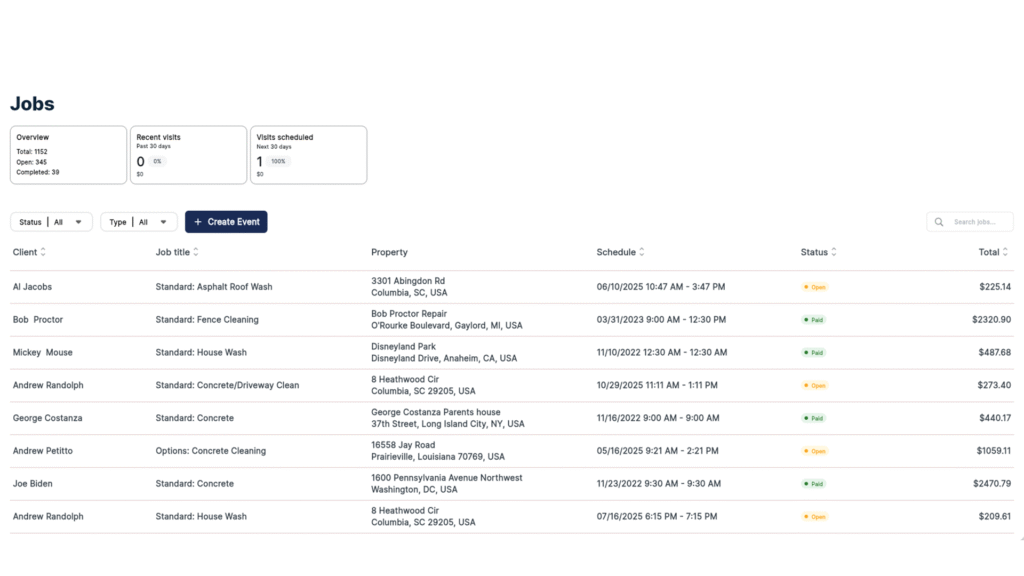
Job Lists is a centralized job management dashboard that allows contractors to view, filter, search, and manage all jobs in one unified location. It provides a comprehensive overview of job metrics, real-time status tracking, and quick access to create new scheduled jobs with full team assignment capabilities.
Where Job Lists Lives
- Navigation: Hamburger menu → “Job List”
- Screen Title: “Job List” (header bar)
- Primary Tab: Accessible alongside Home, Estimates, Schedule, and QuoteIQ Cam in the bottom navigation
Job List Plan Availability
Available on all QuoteIQ Plans
DASHBOARD COMPONENTS
Overview Metrics Cards
The Job Lists dashboard features two primary metric cards at the top of the screen:
Card 1: Overview (or Recent Visits)
Displays aggregate job statistics:
- Total: Complete count of all jobs in the system (e.g., 798)
- Open: Number of jobs not yet completed (e.g., 265)
- Completed: Number of finished jobs (e.g., 96)
Card 2: Recent Visits / Visits Scheduled
Toggles between past and future performance:
Recent Visits (Past 30 Days):
- Number of visits completed
- Percentage change indicator
- Revenue generated ($)
Visits Scheduled (Next 30 Days):
- Number of upcoming visits
- Percentage indicator (e.g., 100%)
- Projected revenue ($)
FILTERING & SEARCH CAPABILITIES
Status Filter
Filter jobs by their current status. Options include:
| Status | Description | Badge Color |
|---|---|---|
| All | Shows all jobs (default) | N/A |
| Open | Jobs not yet completed or paid | Orange |
| Paid | Jobs completed and payment received | Green |
| Done | Jobs marked as complete | Blue |
| Upcoming | Future scheduled jobs | N/A |
Type Filter
Filter jobs by scheduling type:
| Type | Description |
|---|---|
| All | Shows all job types (default) |
| One-off jobs | Single occurrence jobs |
| Recurring jobs | Jobs on a repeat schedule (weekly, monthly, etc.) |
Search Bar
- Location: Below the filter buttons
- Placeholder Text: “Search jobs…”
- Search Capabilities: Free-text search across:
- Client names
- Job titles
- Property addresses
JOB TABLE STRUCTURE
Column Layout
The job list displays in a sortable table format with the following columns:
| Column | Description | Sortable |
|---|---|---|
| Client | Customer name associated with the job | Yes (↕) |
| Job Title | Service type and estimate format | Yes (↕) |
| Property | Full property address (street, city, state, ZIP) | No |
| Schedule | Date and time range (MM/DD/YYYY HH:MM AM/PM) | Yes (↕) |
| Status | Visual status badge (Paid/Open/Done) | Yes (↕) |
| Total | Invoice/job total in USD | Yes (↕) |
Job Title Formats
Job titles indicate both the estimate type and service:
- Standard: [Service Name] – Traditional single-service job
- Options: [Service Name] – Created from Good/Better/Best estimate
- Quick: [Service Name] – Created from Quick estimate
- Package: [Service Name] – Created from Package estimate
- Event: [Service Name] – Event-based or special occasion job
Examples:
- “Standard: House Wash”
- “Options: House Wash”
- “Standard: Solar Panels”
- “Event: House Wash”
Status Badge Indicators
Visual color-coded badges for quick status identification:
- 🟢 Paid (Green) – Payment received
- 🟠 Open (Orange) – Awaiting completion or payment
- 🔵 Done (Blue) – Job completed
CREATE SCHEDULE JOB FORM
Accessing the Form
- Button: “+ Create” (dark navy button, top right of job list)
- Opens: Modal/slide-up form titled “Create Schedule Job”
Form Fields & Sections
1. Customer Selection
- Field: “Select Customer” dropdown
- Options:
- Select from existing customers in CRM
- “+ Add a new customer” link to create new contact
2. Scheduling
Start Date:
- Calendar date picker
- Format: YYYY-MM-DD (e.g., 2025-12-02)
- “Select” button to confirm date
Start Time / End Time:
- Time input fields (hh:mm format)
- Separate fields for start and end times
Scheduling Options (Checkboxes):
- ☐ Recurring Schedule – Enable for repeat jobs
- ☐ All Day – Mark as full-day job (no specific times)
3. Services Section
- Display: “No services added yet” (empty state)
- Instruction: “Tap the button below to add a service”
- Button: “+ Add A New Service” (outlined button)
- Functionality: Opens service/price book selection
4. Notes
- Field: Text input with “Notes” label
- Icon: Document/clipboard icon
- Purpose: Job-specific instructions, special requirements, or internal notes
5. Employee Assignment
Section Header: “Select Employees”
- Dropdown: “Assign Employee” selector
- Add More: “+ Add more” link to assign multiple employees
- Remove: Red trash icon button to delete assignment
- Multiple: Can assign multiple individual employees to single job
6. Crew Assignment
Section Header: “Select Crews”
- Dropdown: “Assign Crew” selector
- Add More: “+ Add more” link to assign multiple crews
- Remove: Red trash icon button to delete assignment
- Multiple: Can assign multiple crews to single job
7. Confirmation
- Button: “Confirm Schedule” (dark navy, full-width)
- Action: Creates the scheduled job and adds to Job List
USER FLOW DIAGRAMS
Viewing Jobs Flow
Open App → Hamburger Menu → Job List → View Dashboard
                                          ↓
                              Apply Filters (optional)
                                          ↓
                              Search Jobs (optional)
                                          ↓
                              Tap Job Row → View Job Details
Creating a Job Flow
Job List → Tap "+ Create" → Create Schedule Job Form
                                      ↓
                            Select/Add Customer
                                      ↓
                            Set Date & Time
                                      ↓
                            Add Services (optional)
                                      ↓
                            Add Notes (optional)
                                      ↓
                            Assign Employees/Crews
                                      ↓
                            Tap "Confirm Schedule"
                                      ↓
                            Job Added to List
JOB LISTS KEY BENEFITS
For Solo Operators
- Single View Management: See all jobs without switching between multiple screens
- Quick Status Checks: Instantly identify which jobs need attention (Open status)
- Efficient Scheduling: Create jobs with all details in one form
For Growing Teams (3-7 employees)
- Team Assignment: Assign specific employees or pre-built crews to jobs at creation
- Workload Visibility: See who’s assigned to what through job details
- Recurring Job Management: Easily filter and manage maintenance contracts
For Established Businesses (7+ employees)
- Performance Metrics: Track 30-day past and future performance at a glance
- Revenue Forecasting: See projected revenue from scheduled visits
- Crew Coordination: Assign entire crews to jobs for complex projects
COMMON USE CASES
1. Morning Dispatch Routine
Scenario: Business owner needs to see today’s jobs and ensure crews are assigned.
Steps:
- Open Job List
- Filter by Status → “Upcoming”
- Review scheduled jobs for the day
- Verify employee/crew assignments
- Dispatch teams
2. Accounts Receivable Follow-Up
Scenario: Office manager needs to identify unpaid jobs for collection calls.
Steps:
- Open Job List
- Filter by Status → “Open”
- Review list of unpaid jobs
- Note client names and totals
- Initiate follow-up via ClientHub or phone
3. Recurring Service Review
Scenario: Contractor wants to review all maintenance contracts.
Steps:
- Open Job List
- Filter by Type → “Recurring jobs”
- Review all recurring service agreements
- Check schedules and pricing
- Identify upsell opportunities
4. Quick Job Scheduling
Scenario: Customer calls requesting same-day service.
Steps:
- Open Job List
- Tap “+ Create”
- Select existing customer (or add new)
- Set today’s date and available time slot
- Add service from price book
- Assign available employee
- Confirm Schedule
- Job immediately appears in list and calendar
5. End-of-Month Performance Check
Scenario: Owner wants to review monthly job completion and revenue.
Steps:
- Open Job List
- Review “Recent Visits – Past 30 Days” card
- Note completed visits count and revenue
- Compare to “Visits Scheduled” for next month
- Identify trends and adjust capacity
JOB LISTS INTEGRATION WITH OTHER QUOTEIQ FEATURES
Schedule/Calendar
- Jobs created in Job List appear automatically on the Schedule calendar
- Calendar events sync bi-directionally with Job List status
Estimates
- Jobs linked to original estimates (Standard, Options, Quick, Package)
- Job title reflects estimate type used
EmployeeHub
- Employee assignments pull from EmployeeHub employee database
- Crew assignments use pre-configured crews from EmployeeHub
Invoicing
- Job status updates when invoice is paid
- “Paid” status reflects payment received through QuoteIQ invoicing
ClientHub
- Customer selection pulls from CRM database
- Job history visible in customer contact records
COMPETITIVE ANALYSIS
Job Lists vs. Competitors
| Feature | QuoteIQ | Jobber | Housecall Pro | ServiceTitan |
|---|---|---|---|---|
| Centralized Job Dashboard | ✅ Included | ✅ Included | ✅ Included | ✅ Included |
| Status Filtering | ✅ 5 options | ✅ Similar | ✅ Similar | ✅ Advanced |
| One-off vs Recurring Filter | ✅ Native | ⚠️ Limited | ✅ Yes | ✅ Yes |
| 30-Day Performance Metrics | ✅ Built-in | ⚠️ Reports Only | ⚠️ Reports Only | ✅ Built-in |
| Employee Assignment at Creation | ✅ Yes | ✅ Yes | ✅ Yes | ✅ Yes |
| Crew Assignment at Creation | ✅ Yes | ✅ Yes | ⚠️ Limited | ✅ Yes |
| Search Functionality | ✅ Yes | ✅ Yes | ✅ Yes | ✅ Advanced |
| Mobile-First Design | ✅ Yes | ✅ Yes | ✅ Yes | ⚠️ Desktop-first |
QuoteIQ Job Lists Advantages
- All-In-One: Job Lists included in subscription, no add-on required
- Mobile-Optimized: Designed for field use on phones
- Quick Creation: Create fully-detailed jobs in under 60 seconds
- Visual Status Badges: Color-coded for instant recognition
- Integrated Metrics: Performance data visible without navigating to separate reports