Build estimates in four formats, give customers options, and collect signatures online. QuoteIQ connects estimating with branded proposals and follow-ups to help you move the job toward acceptance.
Every estimate format on every plan · From $29.99/month
✓ Standard · Quick · Options · Package✓ Estimate e-signatures on every plan✓ iPhone · Android · Web4.7/5 · 3.4K App Store ratings
Quick Answer
QuoteIQ is the best estimating software for contractors who want to build, send, track, and get service estimates accepted in one app, with plans starting at $29.99/month. Use itemized estimates, AI estimating, and electronic signatures, then connect accepted work to scheduling and billing. Comparing Jobber or Housecall Pro? Start with the full comparison hub. Check your cost assumptions using the SBA’s business planning resources.
The short version
TL;DR: QuoteIQ is the best estimating software for contractors who want every estimate format in one app. It brings Standard, Quick, Options, and Package Estimates into one workflow. Reuse prices and templates; add services, materials, optional work, and markups. MapMeasure Pro helps define the scope, AI Estimator builds a draft, and CoPilot helps revise it. Send by email or text, collect the signature, use follow-ups, and convert to an invoice. The surrounding tools follow their plan requirements. Keep actual job evidence with your records (IRS) and review AI output before delivery (NIST).
Why clear estimates matter
Read the contractor insights below for Mike Vidan’s advice on clear scope and Justin Rogers’ perspective on follow-through.
A simple estimate-cost check. If 10 weekly estimates each take 20 minutes, that is 200 minutes. At 8 minutes each, it is 80 minutes—a difference of 120 minutes, or 2 hours a week. This is illustrative arithmetic, not a measured QuoteIQ performance claim. Time your own workflow from scope to send.
How to create and send an estimate in QuoteIQ
01
Create the estimate
Tap + Create Estimate, then pick Quick, Standard, Options or Package.
02
Add line items
Tap services from your price book, enter the quantity; totals update.
03
Add optional upgrades
Switch on Optional Add-on; the customer can choose to add it.
04
Send the estimate
Preview it, then tap Text Customer, Email Customer or Send Both.
05
Customer signs and accepts
They open the link, draw a signature and tap Accept estimate.
06
Invoice or schedule it
On the Accepted estimate, tap Invoice or Schedule to book the job.
See the connected business behind the estimate.
Watch “What Is QuoteIQ?” for an introduction, or use the estimate tutorials to follow the workflow.
Choose the format that fits the decision your customer needs to make.
Contractor estimate software should fit a quick repair, a detailed installation, and a choice of service packages. QuoteIQ gives you Standard, Quick, Options, and Package estimates on every plan. Each stays connected to the customer and the next step.
An itemized scope, with room for the details.
Build Standard Estimates from your services, quantities, rates, and descriptions. Add supporting information so a plumbing repair, painting project, or landscape installation has a clear scope and a price the customer can review.
Quote the straightforward job while you are still there.
Use Quick Estimates for simple work that does not need a lengthy document. Enter the customer and service, review the amount, and send from your phone or computer.
Put the customer in control of the choice.
Use Options Estimates to present alternatives and selectable services. Show the core work alongside relevant upgrades, so the customer can choose the scope they want instead of asking you to rebuild the quote.
Bundle the work into a clear service plan.
Package Estimates group services into named bundles or tiered plans. Present a basic repair, a more complete service, or a maintenance package with your own descriptions and pricing.
Optional services and upsells
Mark a service as additional when the customer should decide whether to include it. Keep upgrades clearly described and separate from the work they already need.
Turn repeat work into a repeatable estimating process.
Keep services, packages, and reusable estimate templates ready for the next job. Build a detailed estimate with service descriptions, quantities, units, materials, sub-items, markups, discounts, taxes, and a deposit requirement.
Set the pricing structure before the next inquiry.
Use your price book, service categories, unit pricing, and pricing matrices to make routine work consistent. Update service and package prices inline. The national average guide and business calculators support your planning; your costs and scope still set the final price.
Start with the work you have already set up.
Apply a saved estimate template, then tailor it to this customer and property. Field presets in Settings pre-fill your usual document values, including expiration and unit-breakdown preferences. Material templates also work on the standard and AI estimate paths.
Services, materials, and sub-items
Give each material a name, description, quantity, unit type, unit cost, and calculated total. Nest separately priced sub-items under a parent service—for example, preparation and finish coats beneath a painting scope. Materials also have a dedicated section. Inventory linking is available with Inventory access.
Markups, discounts, and taxes
Apply a markup to an individual item or use Mark Up All across services and materials. Set flat or percentage discounts, review taxes, and check the recalculated total before sending. Hide selected line-item prices—or all item prices—when the customer should see a bundled total.
Drafts, autosave, and the Open setting
Estimates auto-save while you edit. New estimates are created as Open by default, which can trigger Estimate Created automations immediately. Use the company setting to keep new estimates as Drafts; the automation fires when a draft is published. Drafts are not automatically promoted.
Presets, addresses, and document identity
Keep the job address separate from the billing address, including on PDFs. Set expiration dates, company details, license number, notes, terms, client messages, and footer content. Rename the document label company-wide to Estimate, Quote, or Proposal; that label change is separate from the full Proposals feature.
Find the estimate again
Search and status views help you locate the next document to follow up. The September list update adds server-side paging and search across customer name, document number, address, email, and phone, with rollout account by account.
Know who built it
Estimate cards provide a shortcut to the contact record and identify the team member who created the document. Estimate numbering starts at 100 by default. Collapsible editor sections and inline changes keep the form manageable.
Your draft setting controls when an estimate becomes Open—and when creation automations can run.
Build your next estimate in QuoteIQ.
Four estimate formats. Online signatures. One connected workflow.
Start Your Free Trial14-day free trial. A credit or debit card is required to start.
03 / Measure & Document
Show exactly what your price covers.
Give the customer a scope they can see.
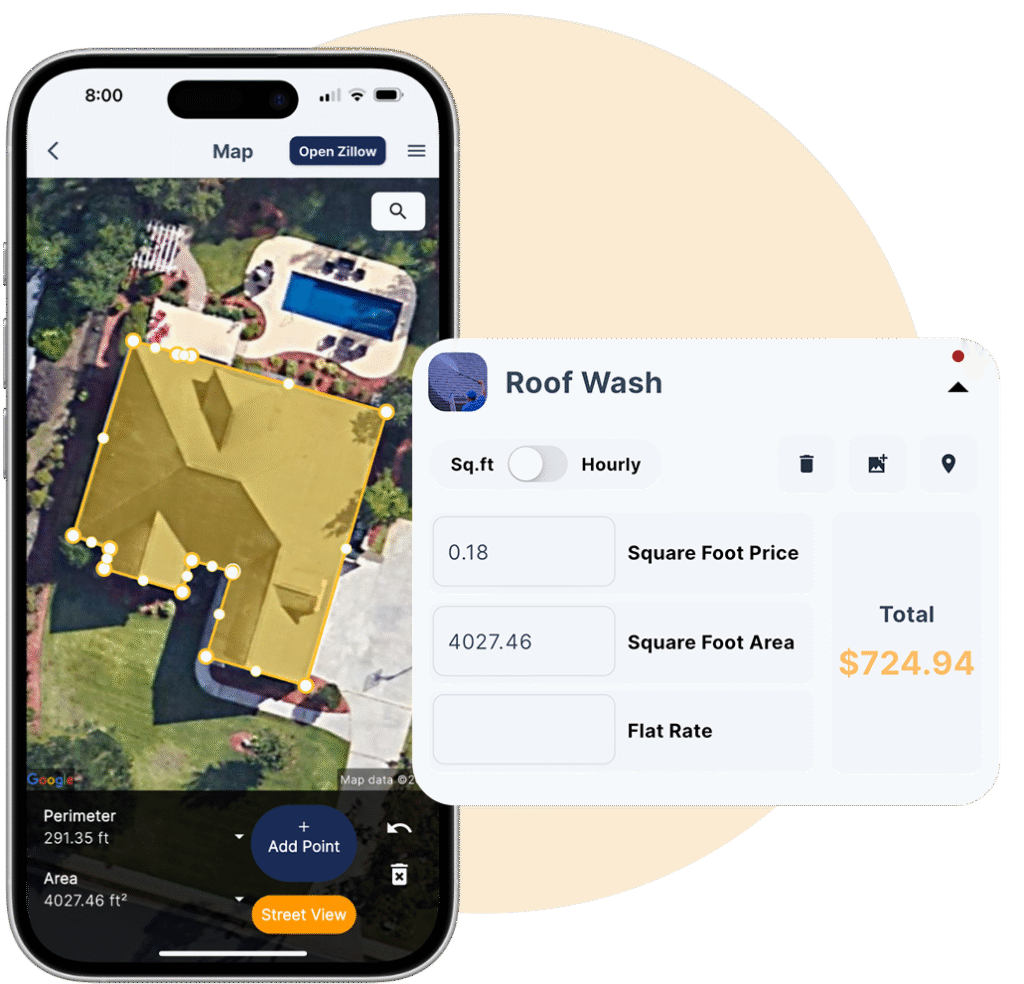
Use MapMeasure Pro for remote property measurements, then bring the dimensions and measurement screenshot into the estimate. Add job photos and inspection evidence so your price has context before a customer accepts.
Measure from the estimate you are already building.
Measure areas and linear distances, draw complex shapes, save property measurements, and use them in your quote. Review Street View and property information when useful. Roof and pitch tools add another measurement path; AI AutoMeasure and property lookups use IQ Credits.
Keep the condition report with the proposed work.
Create or attach a customer inspection form to the estimate. Inspection Forms bring checklists, notes, images, and PDF reports into the quoting workflow. QuoteIQ Cam also supports job documentation and before-and-after editing.
A visual record of the measurement
Show the property area behind the estimate. MapMeasure Pro property measurement in QuoteIQ.
Photos, PDFs, and customer-visible attachments
Customers can see estimate attachments on their estimate page. Uploaded photos appear below Notes; images and PDF documents are organized separately. PDF photos are clickable, and attachment rows stay together across pages.
Sell the result visually
Use the Before/After AI Image Generator to create an illustrative preview from a property photo and attach it to an estimate. It works with all four estimate types. Label generated previews clearly so customers understand they illustrate the proposed result.
Document the real condition
Keep actual site photos distinct from generated previews. Show damaged gutters, restricted access, surface condition, or the exact area being serviced. Use a site inspection whenever photos and remote measurements do not establish enough detail to price the work.
Know the plan requirements
MapMeasure Pro and QuoteIQ Cam are included from Beginner. Inspection workflows depend on the relevant plan or feature access. Review the plan details for your account before choosing the tools you need.
04 / AI Estimating
Describe the job. Build the estimate. Refine it.
AI for the parts of estimating that eat up your day.
AI Estimator builds a new estimate from photos or a job description. AI CoPilot edits the estimate already in front of you. AI Autopilot handles requests across the CRM. All three use IQ Credits; you review the scope and final price.
Start with a photo or a description.
Describe the service or upload property photos. AI Estimator considers the job, asks follow-up questions, and generates suggested pricing and line items. Review quantities, access, materials, and local costs, then adjust before sending.
Change the estimate by saying what you need.
Type or speak a request to add a service, apply a discount, change tax, draft a client message, set a deposit, or mark an item as additional. Choose Auto Accept or Review for changes. CoPilot access follows the Use CoPilot permission and your available credit balance.
AI Autopilot: across the business
Ask AI Autopilot to create an estimate, find customer information, or work across scheduling, invoicing, messaging, and business data. It is broader than CoPilot, which stays focused on the estimate or invoice you are editing.
AI writing and visual previews
Draft clearer service descriptions and customer messages with AI text assistance. Add a Before/After AI preview when a visual explanation helps the customer understand the proposed work.
IQ Credits and review
Every plan includes a monthly IQ Credit allocation. AI actions show their credit cost before running. Check the suggested scope and math before delivery—AI assistance does not know about site conditions you have not supplied.
ChatGPT and Claude connector
The AI Assistant connector can read account information and draft estimate-related actions for approval. It runs on the web app. It is a separate workflow from the in-app AI tools.
AI access is included on every plan. Usage consumes IQ Credits; CoPilot also follows employee permissions.
05 / Present & Sign
A number gets compared. A clear proposal gets understood.
Put your company, scope, proof, and signature in the same conversation.
Personalize your estimate with branding, job information, photos, and terms. Attach a full Proposal when the job needs a company introduction, service presentation, gallery, documents, and customer reviews. Customers can sign estimates on every plan.
Give a larger job the presentation it deserves.
Build the proposal around the estimate. Choose a template, edit About, Reviews, and Services content, include a photo gallery and documents, and control which sections customers see. Preview the result and save reusable content to the proposal library.
Make the next step clear: review, sign, accept.
E-signatures let customers accept from their phone. Their drawn signature is saved to the public estimate and PDF. An edit after sending voids an outstanding signature request; a completed customer signature is retained under the updated signed-document behavior.
Attach the contract. Watch it get signed from the estimate.
With QuoteIQ Sign on Pro and up, the documents you attach to an estimate carry their own signature boxes, and your customer signs them when they accept. The estimate’s Signature tab shows each one go from awaiting signature to signed, with the signed copy one tap away.
Proposal signing is its own flow
Proposals use consent, signature-and-initial adoption, and per-field signing. Require initials is available on Documents sections. This is distinct from the existing estimate acceptance flow and from the early-access standalone QuoteIQ Sign product.
Proposal credits, explained
Proposals are available on paid plans. Essentials, Beginner, and Pro use 100 IQ Credits per estimate when a proposal is first attached; switching the template, editing, and resending add no further proposal charge. That charge is waived during the trial and on Elite and Max.
What buyers look for
The FTC’s contractor guidance encourages buyers to compare written scope, materials, timing, and price. Put those details where the customer can review them.
Branding and document control
Show your logo, business contact information, company license number, terms, notes, and client message. Choose whether line-item prices are shown. The expiration date appears on the PDF, and customers can select and copy text from the estimate page.
Send to everyone involved
Send by email, SMS, PDF, or share link. Additional contacts on the customer record carry through the recipient picker for estimates, jobs, and invoices. Use the auto-add setting when a property manager or other contact should be included on new documents.
A full Proposal is different from simply renaming the document “Proposal.”
06 / Follow Up
Keep the estimate moving after you press Send.
A sent estimate should have a next step.
Track views and estimate status, keep customer conversations together with ClientHub, and use email and text automation to follow up. Your customer can return to documents through the Client Portal on Pro and above.
Follow up with the right customer and estimate.
Build messages around Estimate Created, Estimate Scheduled, and Estimate Declined events. Personalize with the customer name, service list, estimate total, and estimate link. Review Templates, Queue, and History to see active sequences and scheduled or sent messages.
See the work you are trying to win.
Pipelines & Deals organize opportunities into your sales stages and support probability-weighted forecasting. Elite includes up to five pipelines; Max includes unlimited pipelines and Sales Team Tracker. Track the opportunity alongside the estimate instead of relying on memory.
Timing that matches your sales process
Configure immediate or delayed messages and import Mike Vidan’s pre-built automation templates. Follow-up automation is included from Pro; it is separate from mass text and email campaigns on Elite and above.
Commercial email guidance
Review the FTC’s CAN-SPAM guide when setting up commercial email sequences, including identification and opt-out handling.
A single customer record
Use customer history, service addresses, lead sources, tags, and additional contacts to preserve context. ClientHub keeps two-way business calls and texts in the account. Internal tasks and reminders help you keep a promised callback from slipping.
Open versus Draft matters
If new estimates save as Open, Estimate Created automations can fire right away. If you use Draft mode, the trigger waits until publication. Set this deliberately before enabling a new follow-up sequence.
Measure the result
Business analytics show estimate performance and conversion. Use job costing after the work to compare the sale with labor and expenses, then improve the prices and scopes you quote next time.
Your services and pricing, available when the customer is ready.
InstaQuote lets customers build their own estimate through your website or a shared link. They select services, answer your questions, and see calculated pricing. Pair it with InstaSchedule to let them book from your availability. Both are included on Elite and Max.
Turn a website visit into a priced opportunity.
Build a branded, step-by-step form using your service library and pricing rules. Customers select services and add-ons, enter property and contact information, and receive an estimate. You receive the new opportunity inside QuoteIQ.
September form upgrades
Configure service questions, priced rows, always-included services, deposit information, discount codes, ZIP-based upcharges, and travel fees with multiple origins. The customer moves through the quote with forward and back navigation.
Customer measurements and lead capture
Let the customer outline an area on a satellite map. Its screenshot attaches to the estimate so you can see what they measured. Lead capture preserves a contact when a customer stops part-way through the form.
AI pricing matrix and instant follow-up
Use the AI pricing-matrix builder, then choose Add to mine, Replace, or Keep. The InstaQuote Created trigger can start the next automation as soon as a customer creates an estimate.
More paths into the estimate
Website contact forms collect inquiries for you to quote. The Virtual Call Team captures and qualifies phone inquiries. These feed the estimating process; InstaQuote is the customer self-pricing route.
08 / Book & Get Paid
An accepted estimate is the beginning of the job.
Carry the work forward without rebuilding the customer and scope.
Convert an accepted estimate into an invoice in one tap, schedule the work, or create a recurring subscription using the estimate’s customer, services, and pricing. Keep the sale, job, and payment connected.
The accepted work becomes the invoice.
Convert the estimate, review the resulting invoice, and send it to the customer. Deposit and partial-payment tools support the payment arrangement. Available online payment methods depend on your account’s payment processor and setup.
Scheduling and recurring work
Services stay synchronized between the estimate and schedule. Assign individual team members with Pro and above; whole-crew scheduling is a Max feature. Use InstaSchedule for eligible self-booking, or turn an accepted estimate into a subscription for recurring service.
Materials and stock
With Inventory Management, linked materials use product cost information and can deduct stock when the linked invoice is paid in full. A deposit alone does not trigger that deduction unless you deliberately use the deduct option on that screen.
Payments and financing
New accounts use Whop; legacy accounts may use Stripe. Set up and verify the payment account before collection. Customer financing is available on every plan through your payment processor (Stripe or Whop), not from QuoteIQ; do not assume every checkout offers the same methods.
All four estimate formats and estimate e-signatures are included on every plan. The connected tools follow the plan details below.
Essentials
$29.99/mo
1 user
Four estimate types, price book, signatures, AI access, invoices, scheduling.
500 IQ Credits/month
Beginner
$99.99/mo
2 users
Adds MapMeasure Pro, QuoteIQ Cam, contract attachments, and user permissions.
1,500 IQ Credits/month
Pro
$199.99/mo
4 users
Adds follow-up automation, ClientHub, Client Portal, job costing, and QuickBooks.
3,000 IQ Credits/month
Elite
$299.99/mo
10 users
Adds InstaQuote, InstaSchedule, inventory, up to five pipelines, and included proposals.
5,000 IQ Credits/month
Max
$699.99/mo
20 users
Adds unlimited pipelines, Sales Team Tracker, whole-crew scheduling, and more.
8,000 IQ Credits/month
Monthly USD pricing checked October 1, 2026. See annual billing and full plan details. Usage charges and feature access still apply. Proposals: 100 IQ Credits per estimate on Essentials, Beginner, and Pro; waived during trial and on Elite and Max. Feature access differs by plan.
Connected Tools
Best estimating software for contractors. Beyond the quote.
Estimate software for contractors works best when the customer, scope, communication, and job stay connected.
Keep names, service addresses, billing addresses, additional contacts, lead sources, tags, and past work together. AI Smart Import and CSV import can help bring existing records into QuoteIQ. Check the recipient picker before sending.
The price book, saved services, packages, units, and estimate templates reduce repetitive setup. The Business Calculators include paint and mulch tools. Pro adds the Hourly Rate Calculator for rates based on your costs and target margin.
Pipelines follow the opportunity through your sales process. Creator attribution identifies who built the estimate. Max adds sales performance and commission tracking; employee permissions control access to relevant account functions.
Share the estimate as a link or PDF and retain its photos, documents, terms, and signed acceptance. Pro and above adds the Client Portal. Customers can view estimates, invoices, and appointments without asking the office to resend everything.
Convert accepted estimates to recurring subscriptions and connect the work to scheduling. QuickBooks integration and job costing support the accounting and profitability side of the work.
Reported by the business owners in QuoteIQ customer interviews. Individual experiences and self-reported results; not a guarantee of your results. Explore all customer stories.
Compare the whole workflow
Judge the quote—and what happens after it.
Compare QuoteIQ with Jobber, Housecall Pro, ServiceTitan, and other tools using the same job and the plan you would actually buy.
Estimating evaluation checklist · prepared September 15, 2026
Test with a real job
What to check in QuoteIQ and your alternatives
A straightforward repair
Time the customer lookup, service entry, total review, and send.
A choice of scope
Present optional work and packages; check what the customer actually sees and accepts.
A customer revision
Change quantity, material, or scope; check tax, discount, total, and outstanding signing requests.
The next step
Trace the accepted estimate into scheduling, invoicing, payment, and reporting.
Your actual monthly bill
Include users, the required feature tier, usage credits, and any external tools you still need.
A simple document template may be enough for occasional one-off quotes. A specialist estimating tool may be a better fit when your buying requirement is detailed plan takeoff or a specialized cost database. Test those requirements directly. QuoteIQ’s focus here is the connected home-service workflow.
Keep exploring
The complete estimating software toolkit.
Explore the feature pages, practical guidance, and the latest product update.
Practical answers about pricing, scope, AI, follow-ups, and getting from accepted estimate to invoice.
Updated .
The best estimating software for contractors helps you build an accurate scope and price, present it clearly, record the customer’s acceptance, and carry accepted work into the job, and QuoteIQ does all four in one app. In QuoteIQ, start with itemized estimates, use options for customer choices, and use packages for bundled services. Saved prices and templates reduce repeated entry; materials, taxes, discounts, and markup controls let you review the math. Property measurements and job documentation support the scope. Electronic signatures record customer acceptance, while invoice conversion helps prevent retyping. Choose software by testing a real recent job and a customer revision, not just counting features. For the business cost categories behind your rates, see the SBA’s business planning resources. Related tools have different plan requirements, so check the plan you intend to use.
A contractor estimate template should identify the customer and property, define the work, show the price and conditions, and make the acceptance step obvious. In QuoteIQ, Save as Template keeps a finished estimate’s scope so the next similar job starts from it. With QuoteIQ’s estimate software for contractors, use a Standard Estimate for an itemized scope or a Quick Estimate for straightforward work. List quantities, rates, materials, exclusions, expiration, and any deposit requirement. Add measurement evidence and inspection documentation where they explain the job. A branded proposal adds a fuller company and service presentation. Preview the customer document, check recipients, then send the estimate and make its signing step clear. Keep supporting documents with your records; the IRS recordkeeping overview explains why organized business records matter. The right detail is the detail the customer needs to understand what the price actually includes.
An estimate usually communicates an expected cost, while a quote commonly presents a defined price for a defined scope; the document’s terms and the agreement determine the commitment. QuoteIQ lets you set the company-wide label to Estimate, Quote, or Proposal, but a label change does not rewrite your terms or create a full proposal. Use itemized services to explain the scope, options to separate alternatives, and packages to group work. A full Proposal adds presentation sections around the estimate. Review the document and signature requirements before sending, and carry the accepted scope into the invoice. For a practical buyer-side view of written job details, review the FTC’s contractor hiring guidance. Keep assumptions, exclusions, price validity, and the process for extra work explicit; changing the heading alone does not communicate those details.
QuoteIQ contractor estimate software starts at $29.99 per month for Essentials with one user. Beginner is $99.99 for two users, Pro is $199.99 for four, Elite is $299.99 for ten, and Max is $699.99 with 20 users. All five plans include the four estimate formats, price book, electronic estimate signatures, and AI access with monthly IQ Credits. MapMeasure Pro starts with Beginner; follow-up automation, ClientHub, and Client Portal are included from Pro; InstaQuote and InstaSchedule are included from Elite. Proposal credits and usage-based features have their own conditions. Review current pricing and the workflow differences in all comparisons. Eligible new subscribers can try their selected plan for 14 days. A credit or debit card is required to start. When budgeting, include your full business costs using the SBA’s planning resources, rather than assuming the subscription is your only operating expense.
Estimate labor and material costs by defining the work, calculating quantities and time, checking your costs, and applying the pricing adjustments needed for the job. QuoteIQ supports service rates, quantities, a dedicated Materials section, parent services with sub-items, discounts, tax, and item-level or estimate-wide markup. Use MapMeasure Pro for measurable property areas, AI Estimator for an editable starting point, and Standard Estimates for the final breakdown. Inventory links connect material records where enabled; job costing helps compare actual results with what you sold. Business reporting shows the broader pattern. Keep supporting cost records, as described by the IRS recordkeeping guide. For small service jobs, construction estimating software needs often center on service scope, labor, and materials; verify specialized takeoff requirements separately. For HVAC scope, consult ACCA quality standards alongside your own measurements and cost records.
Follow up with the estimate’s specific scope, a clear next step, and an invitation to ask questions—not a generic repeated sales message. QuoteIQ’s email and text automation can personalize messages with the customer, services, estimate total, and link. Check views and status, use ClientHub to keep the conversation together, and organize the opportunity in Pipelines & Deals. The Client Portal gives eligible customers a place to return to documents, and scheduling provides the next step after acceptance. Your company’s Open-versus-Draft setting matters: Estimate Created automations can run immediately for Open estimates, while a Draft waits until publication. Set the sequence to suit the service and the customer’s response. Mike Vidan’s insights discuss practical follow-up timing. Keep commercial emails consistent with the FTC’s CAN-SPAM guidance; automated delivery does not replace thoughtful communication.
AI estimating software turns job information into a draft you can review, price-check, and refine. In QuoteIQ, AI Estimator starts with photos or a description, asks questions, and suggests estimate lines and pricing. CoPilot works inside the current estimate to add services, change tax, apply discounts, write a message, or set a deposit. Use property measurements and inspection evidence to supply concrete scope. AI image previews can illustrate a proposed result; actual job photos record what exists. Your finished estimate still needs a human check before sending. All three in-app AI tools are available on every plan with IQ Credits; CoPilot also follows employee permissions. The NIST AI Risk Management Framework provides broader context for evaluating AI outputs. Do not treat a generated price as confirmation of hidden conditions, access, or costs you have not supplied.
In QuoteIQ, convert an accepted estimate into an invoice in one tap, review it, and send the payment request. The invoicing workflow carries the sale forward so you do not rebuild it from a blank document. Connect the work to scheduling, use self-scheduling where included, or convert the accepted estimate into a recurring subscription. Deposit and partial-payment settings support your payment arrangement. Linked inventory can deduct stock after the invoice is paid in full, rather than on a deposit alone. Job costing helps evaluate profitability, and QuickBooks integration supports accounting on Pro and above. Online collection depends on verification and the processor connected to your account. The IRS recordkeeping overview is useful context for preserving the documents behind business transactions. Review the final invoice after any agreed changes so the customer receives the right scope and amount.
Make your next estimate count
Clear scope. Confident pricing. An easier yes.
See how QuoteIQ contractor estimate software fits the way you win and deliver your next job.
To provide the best experiences, we use technologies like cookies to store and/or access device information. Consenting to these technologies will allow us to process data such as browsing behavior or unique IDs on this site. Not consenting or withdrawing consent, may adversely affect certain features and functions.
Functional
Always active
The technical storage or access is strictly necessary for the legitimate purpose of enabling the use of a specific service explicitly requested by the subscriber or user, or for the sole purpose of carrying out the transmission of a communication over an electronic communications network.
Preferences
The technical storage or access is necessary for the legitimate purpose of storing preferences that are not requested by the subscriber or user.
Statistics
The technical storage or access that is used exclusively for statistical purposes.The technical storage or access that is used exclusively for anonymous statistical purposes. Without a subpoena, voluntary compliance on the part of your Internet Service Provider, or additional records from a third party, information stored or retrieved for this purpose alone cannot usually be used to identify you.
Marketing
The technical storage or access is required to create user profiles to send advertising, or to track the user on a website or across several websites for similar marketing purposes.
We use cookies to improve your experience, analyze site traffic, and support our marketing. By clicking Accept, you agree to this — see our Privacy Policy for details.
Functional
Always active
The technical storage or access is strictly necessary for the legitimate purpose of enabling the use of a specific service explicitly requested by the subscriber or user, or for the sole purpose of carrying out the transmission of a communication over an electronic communications network.
Preferences
The technical storage or access is necessary for the legitimate purpose of storing preferences that are not requested by the subscriber or user.
Statistics
The technical storage or access that is used exclusively for statistical purposes.The technical storage or access that is used exclusively for anonymous statistical purposes. Without a subpoena, voluntary compliance on the part of your Internet Service Provider, or additional records from a third party, information stored or retrieved for this purpose alone cannot usually be used to identify you.
Marketing
The technical storage or access is required to create user profiles to send advertising, or to track the user on a website or across several websites for similar marketing purposes.